How to Conduct Your Inspection on a Android Device:
Before you are able to conduct a inspection on your device, the inspection needs to be scheduled. There two ways of scheduling your inspections.
- Schedule your inspection from the Portal.
- Schedule your inspection from the Mobile App.
Once your inspection has been schedule and you have arrived at the intended property, you can being conducting the inspection through the RedRabbit Mobile App.
Navigation: Open Your RedRabbit Mobile App > Click on Inspection > Select Checklist > Select Area > Inspect Checklist Items
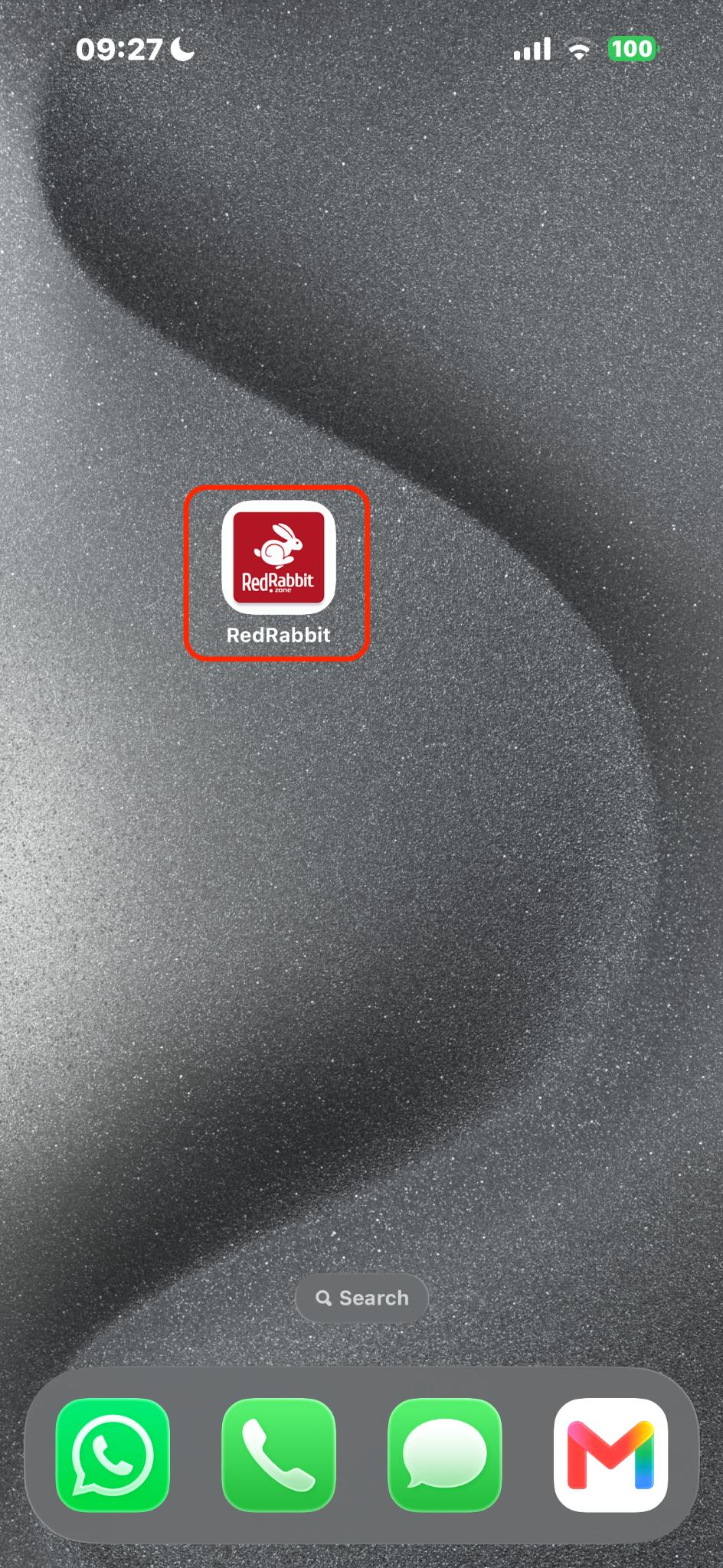
- Click on your RedRabbit Mobile App
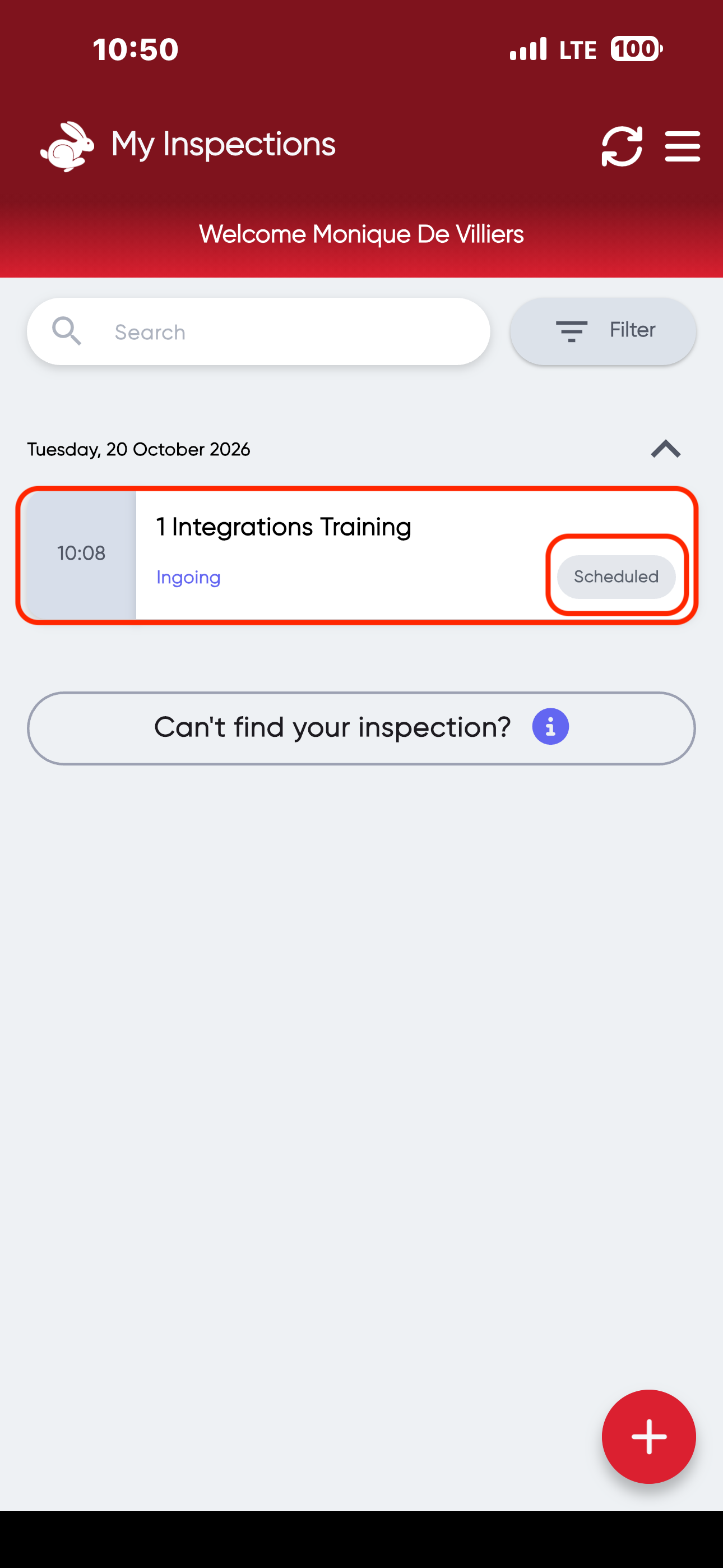
- Select Inspection that needs to be conducted:
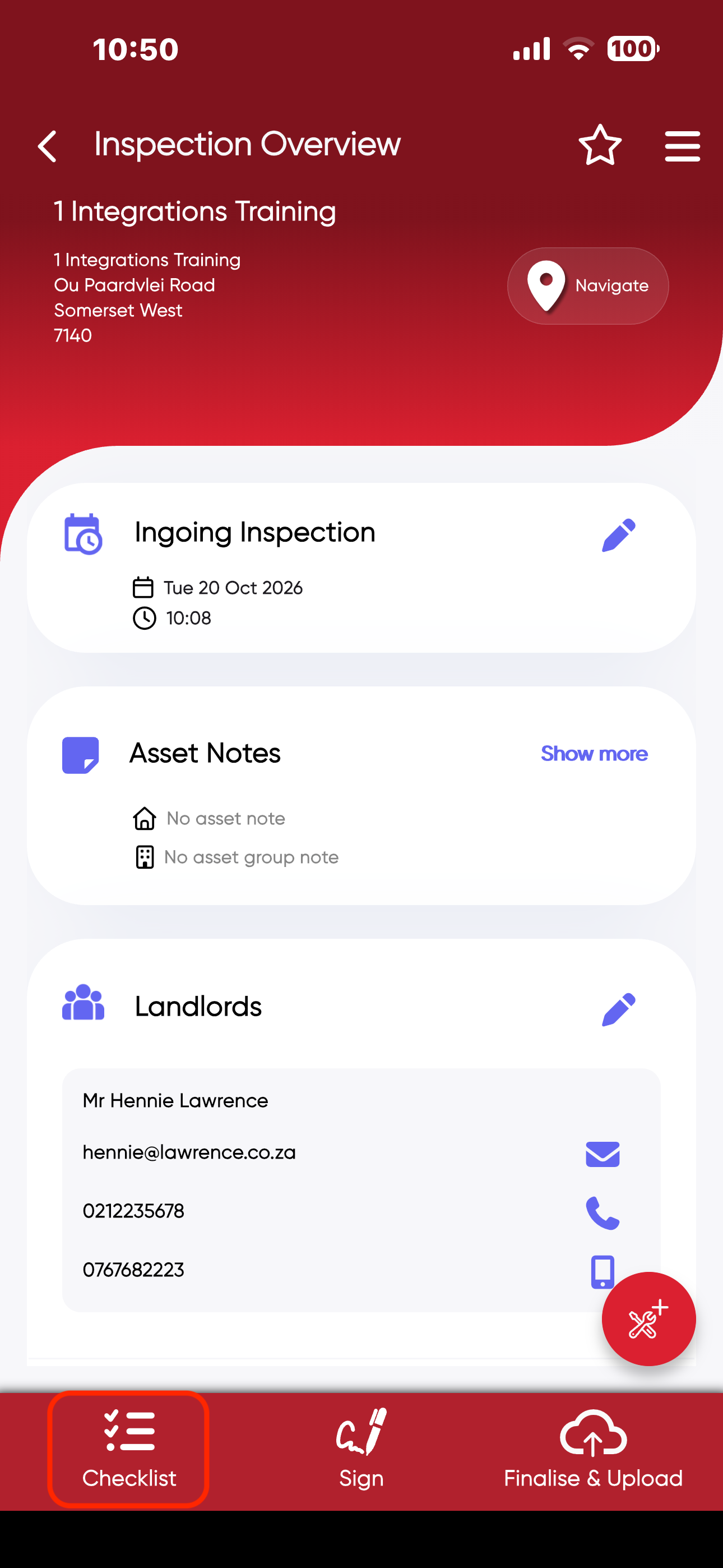
- An Inspection Overview will open, giving all the details related to the inspection that needs to be conducted. Click on "Checklist" in the bottom left corner.
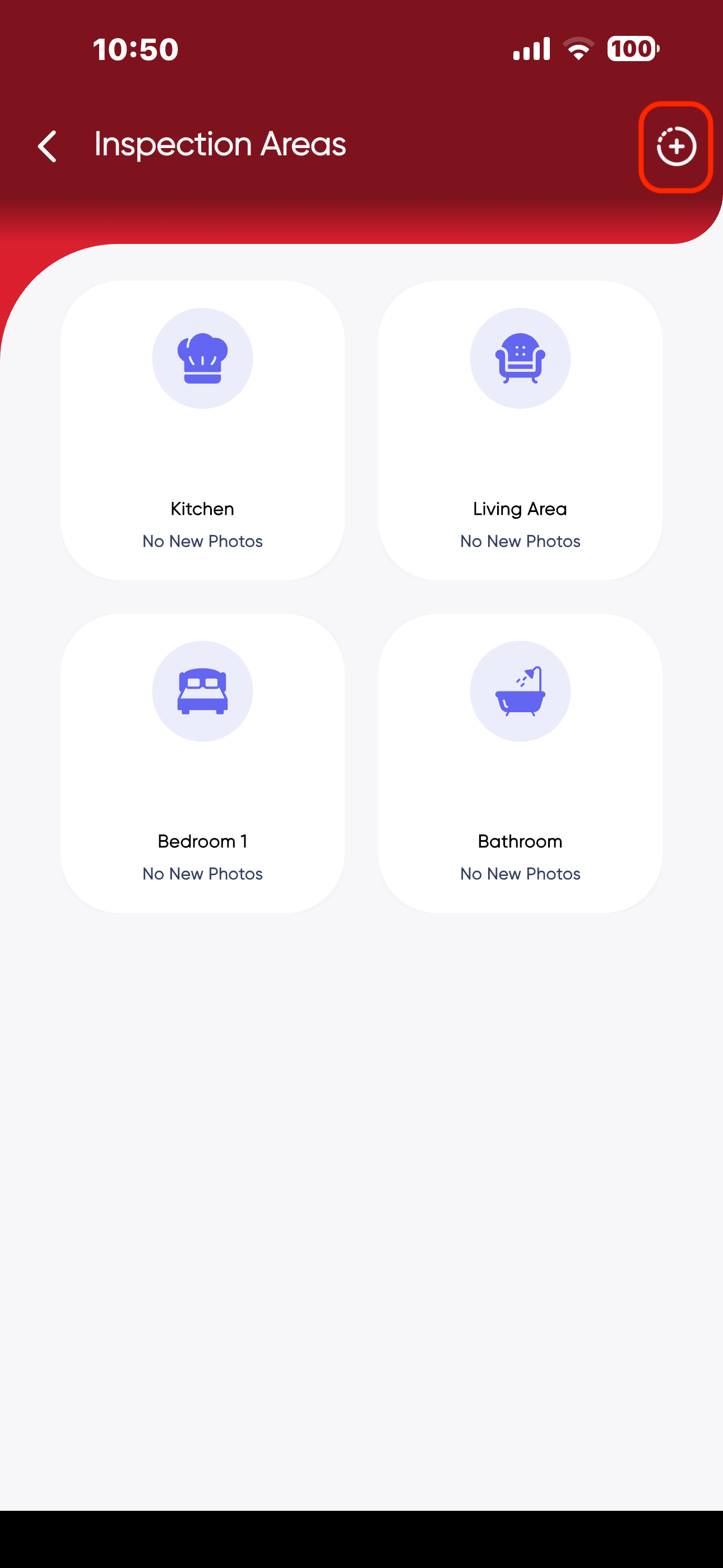
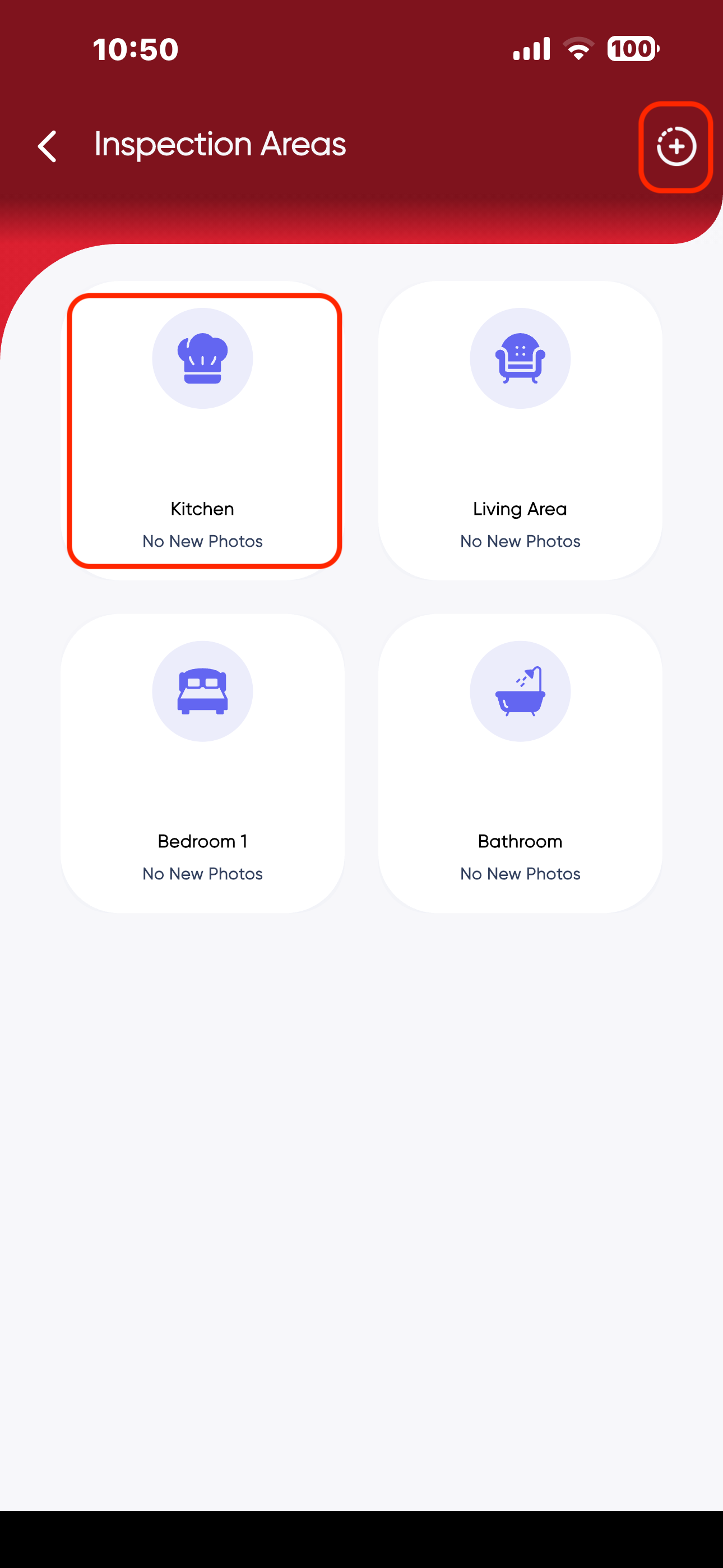
- The Inspection Areas will open, in the top right corner "+" you can add additional areas to the Inspection.
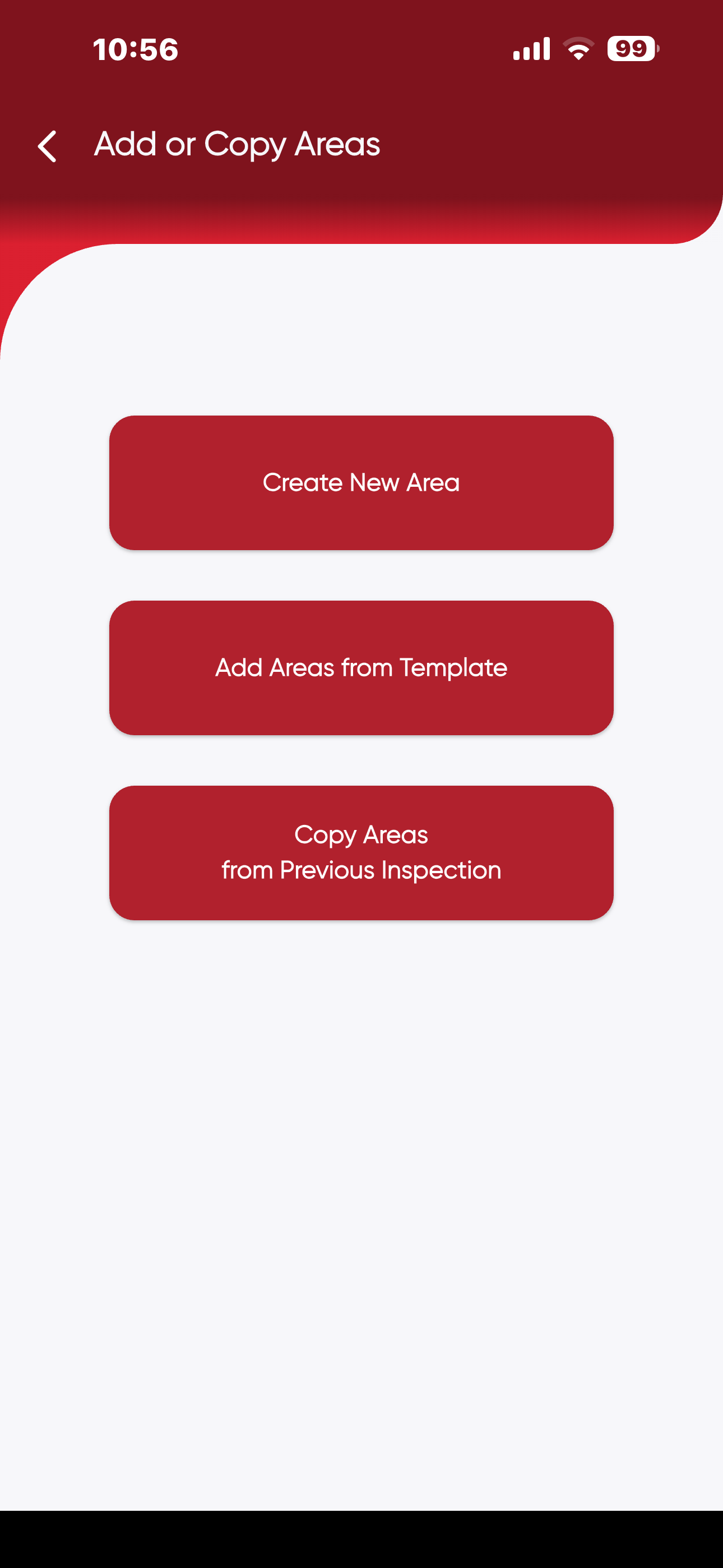
- Click on one of the following options:
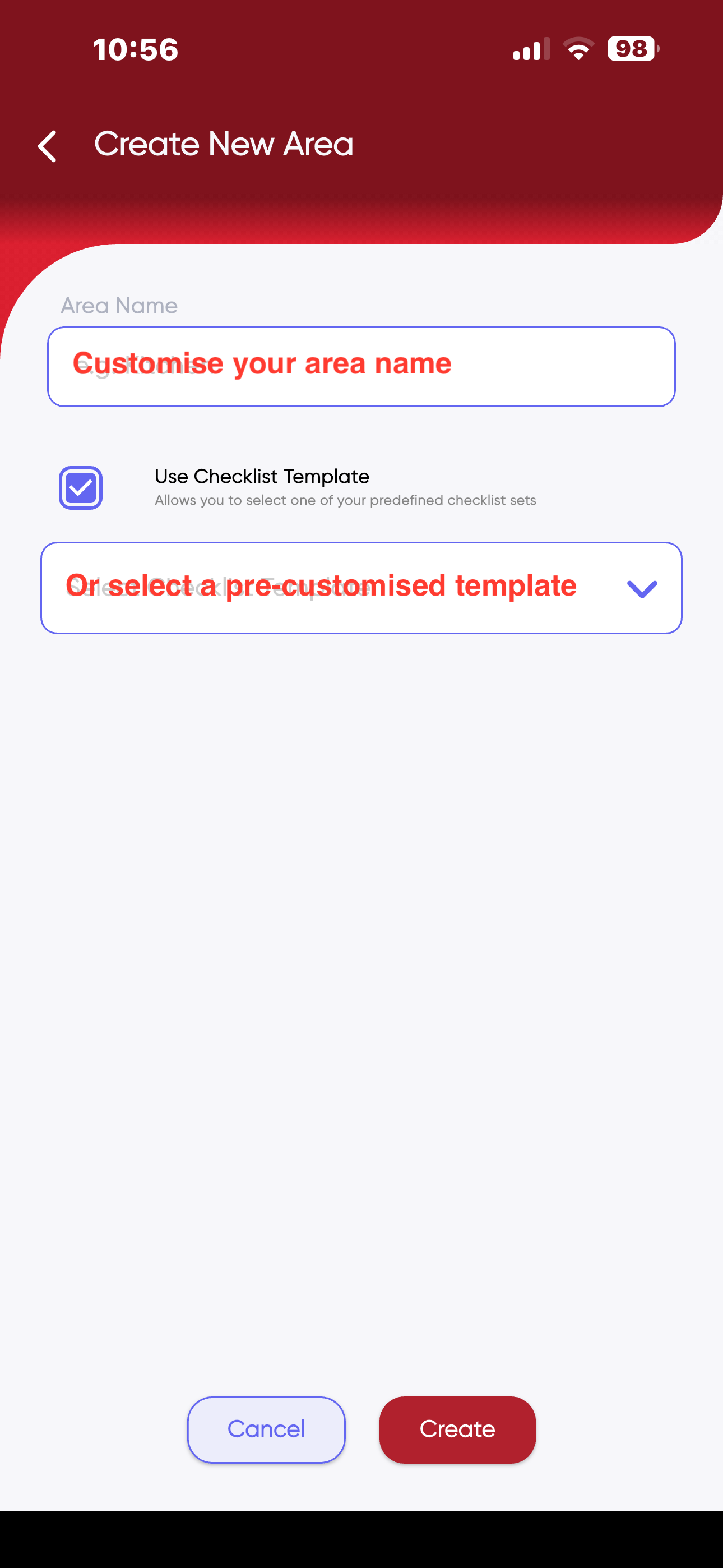
- "Create New Area"- creating your own area by typing in the title you wish.
- "Add Areas from Template"- you can choose one of the pre-customised areas in RedRabbit.
- "Copy Areas from Previous Inspection"- you can make use of a area that was created in a previous inspection.
- Create New Area:
- Select Inspection Area:
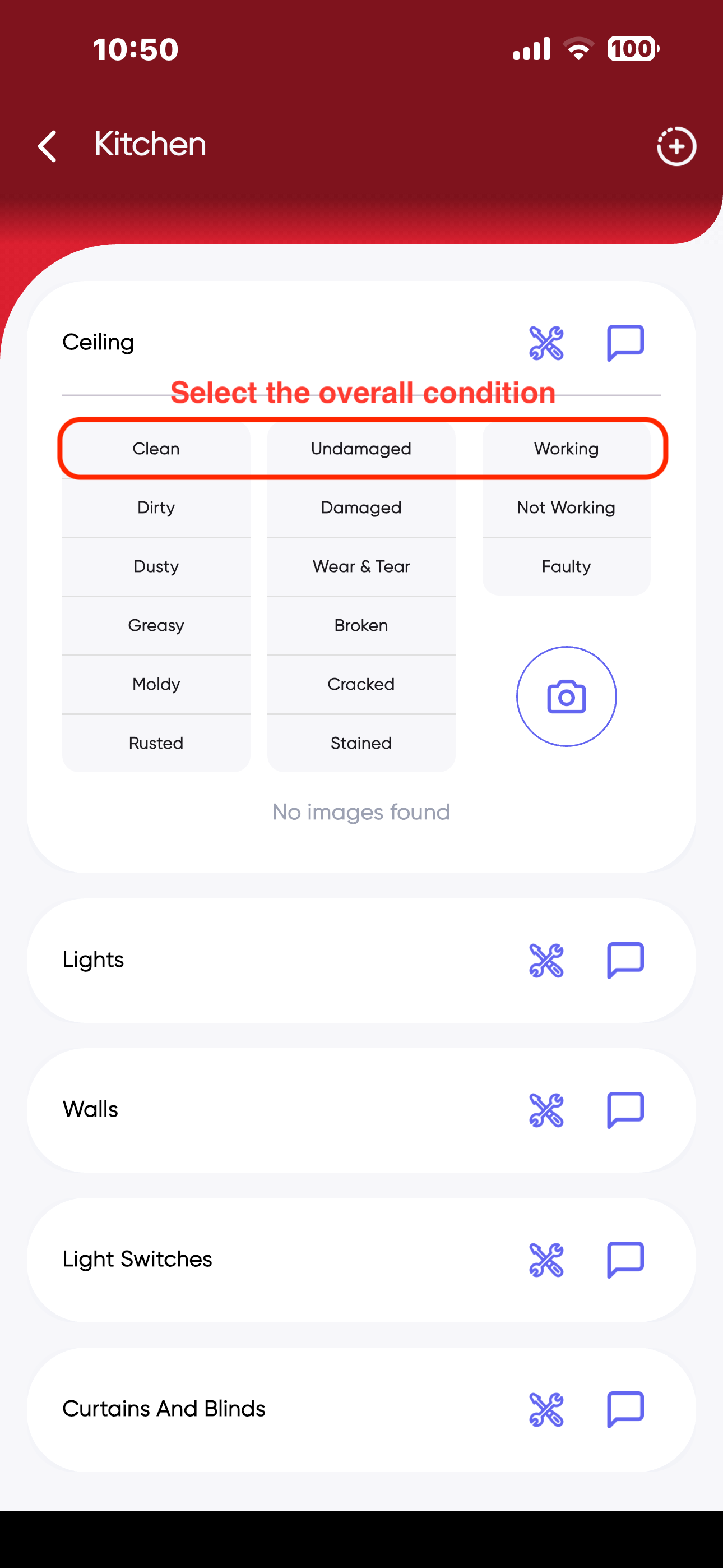
- Select the overall condition (clean, undamaged & working etc.) of the item of inspection:
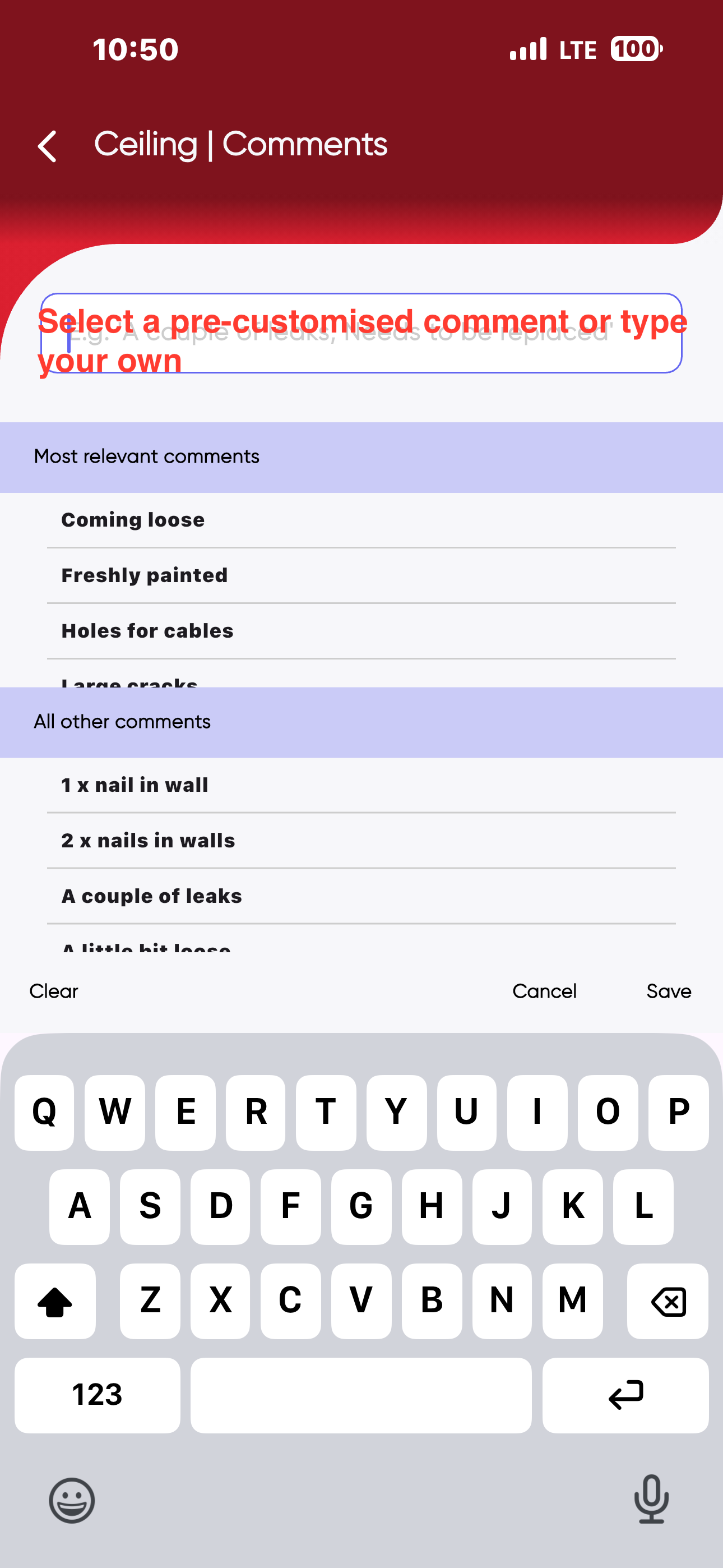
- Make a relevant comment:
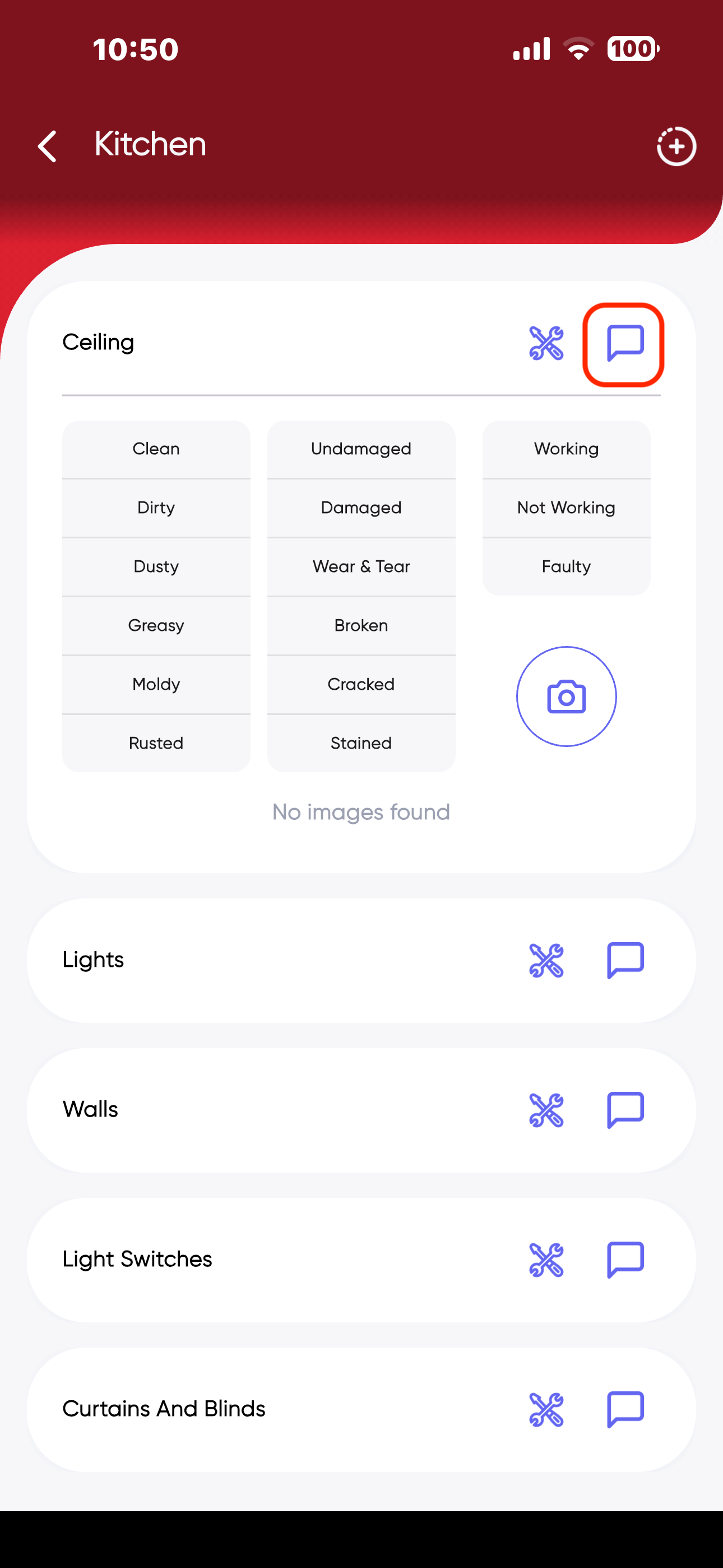
- You can use pre-customised comments within RedRabbit or you can create your own comment
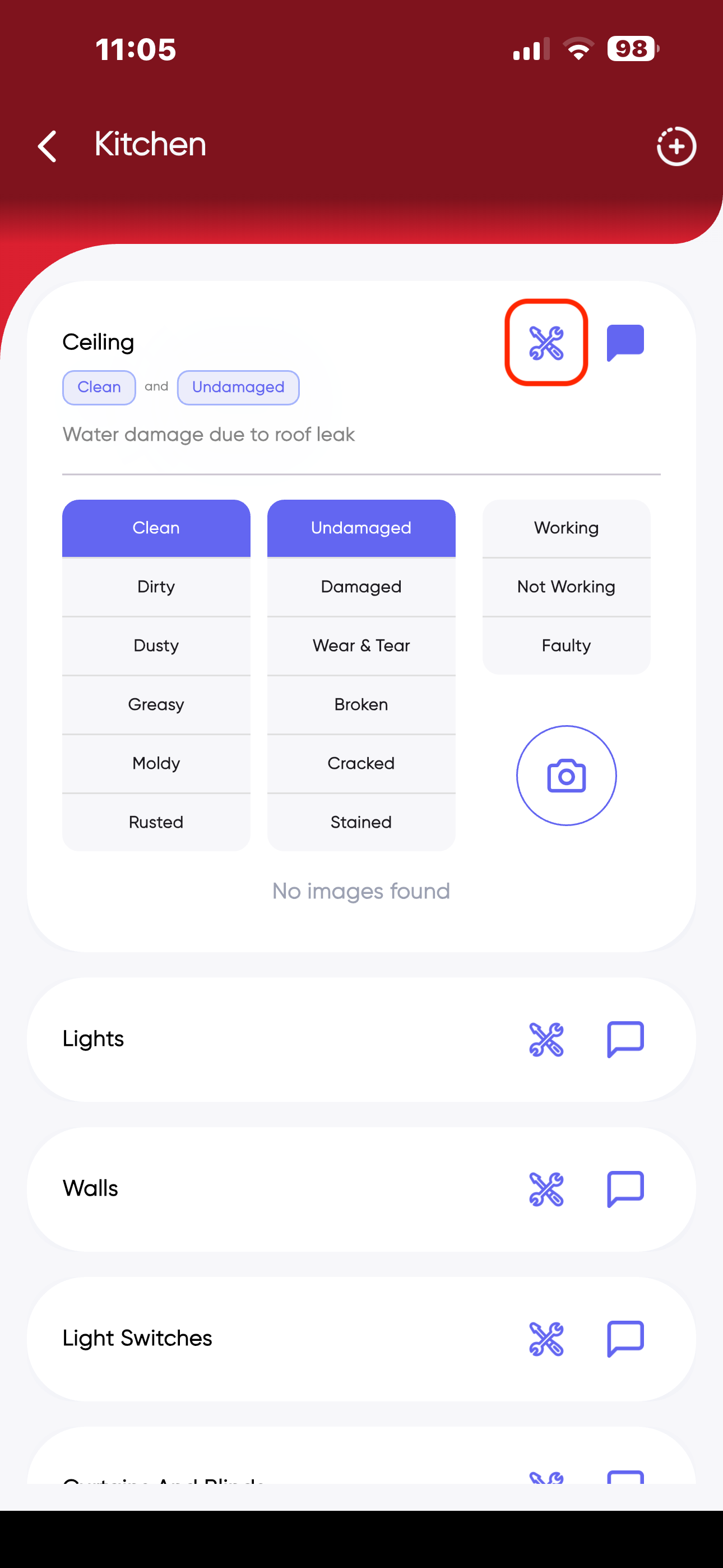
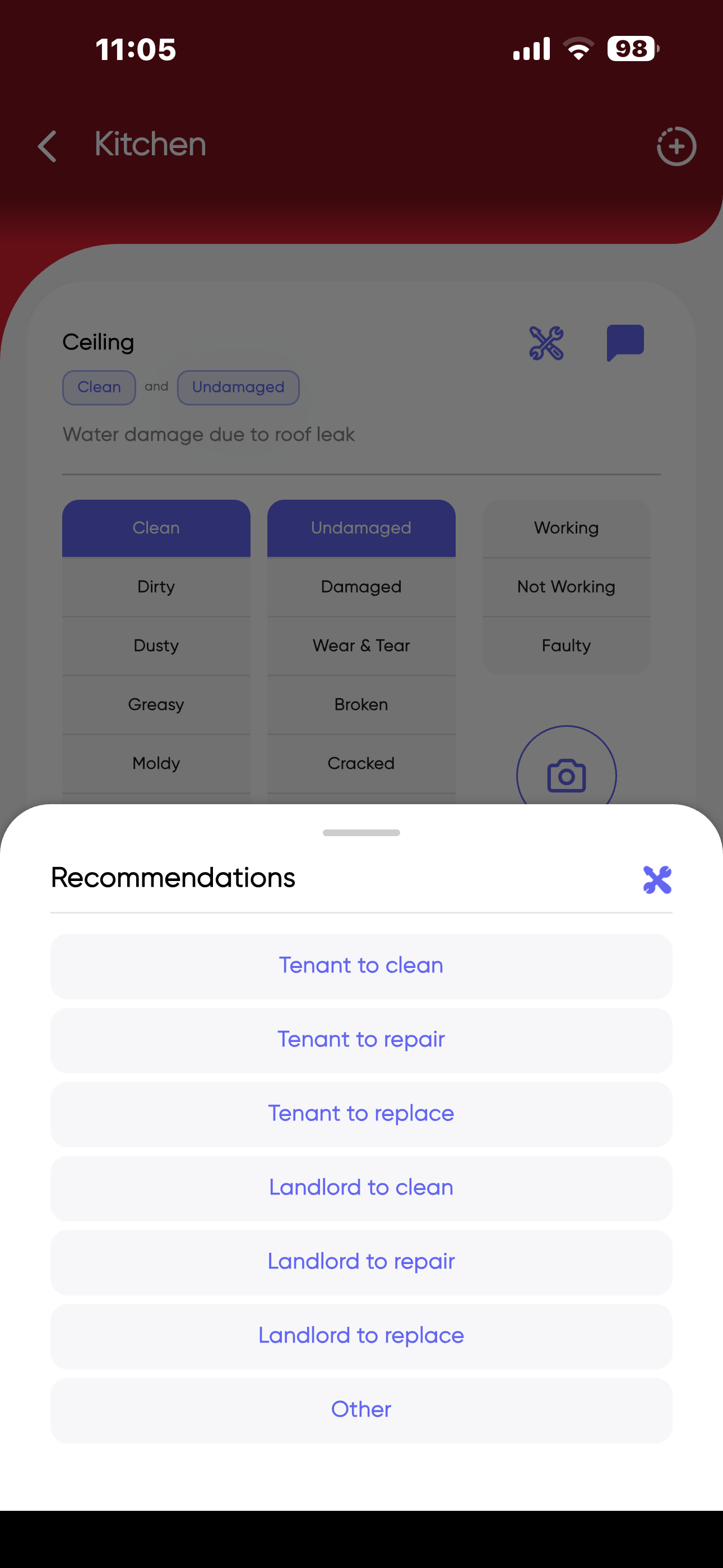
- Make a recommendation (who is responsible for fixing, repairing, replacing or cleaning)
- Take photos:
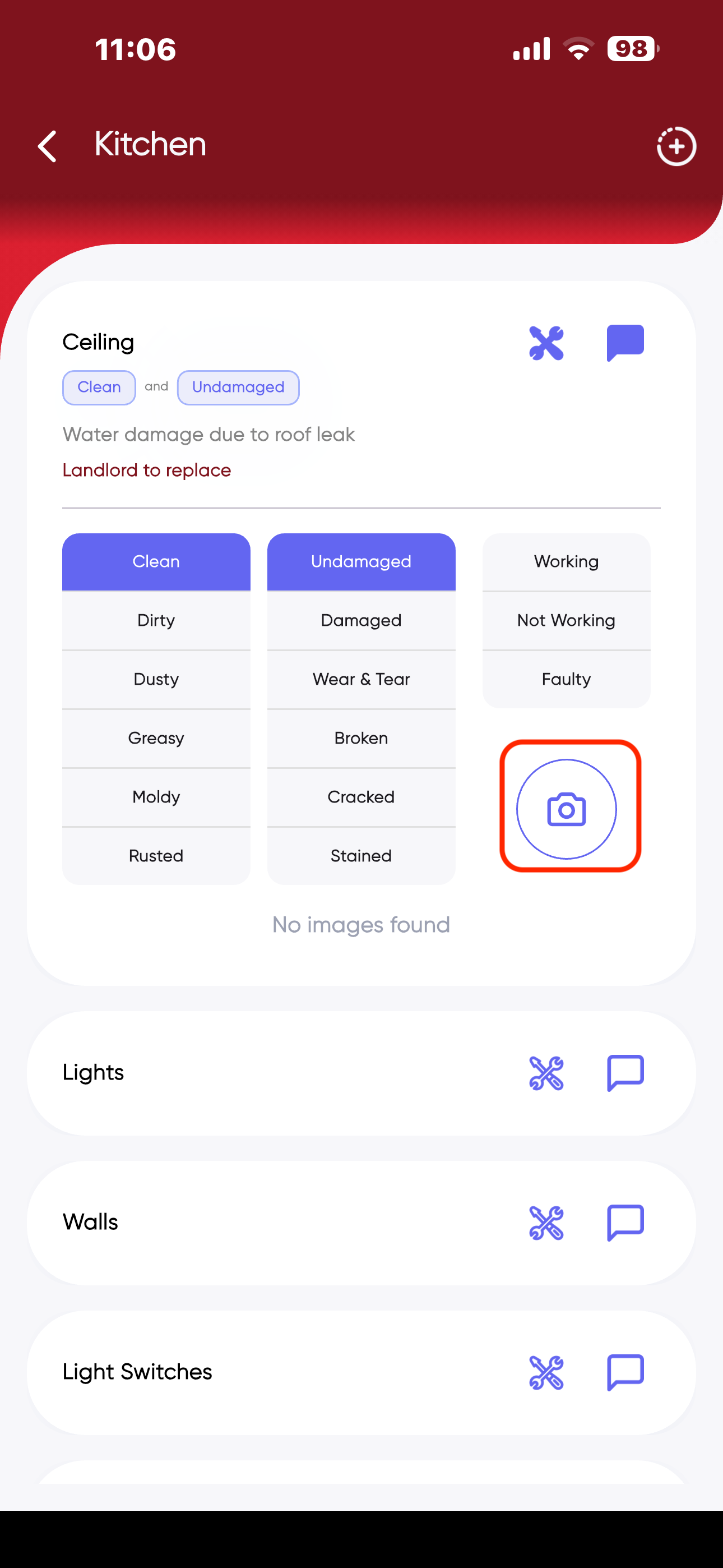
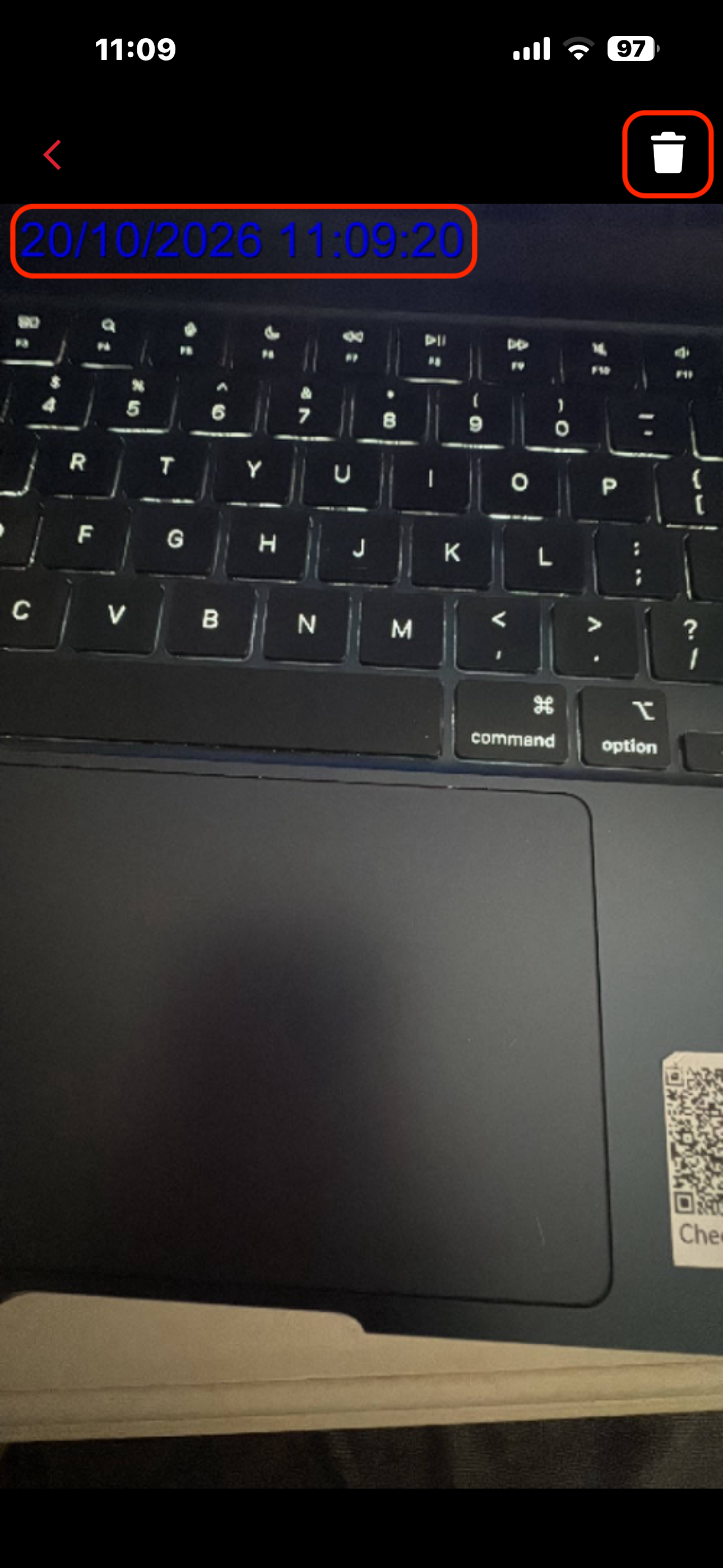
- Photos will be date and time stamped and you will also have the option to delete the photo in the right hand corner should you wish to do so.
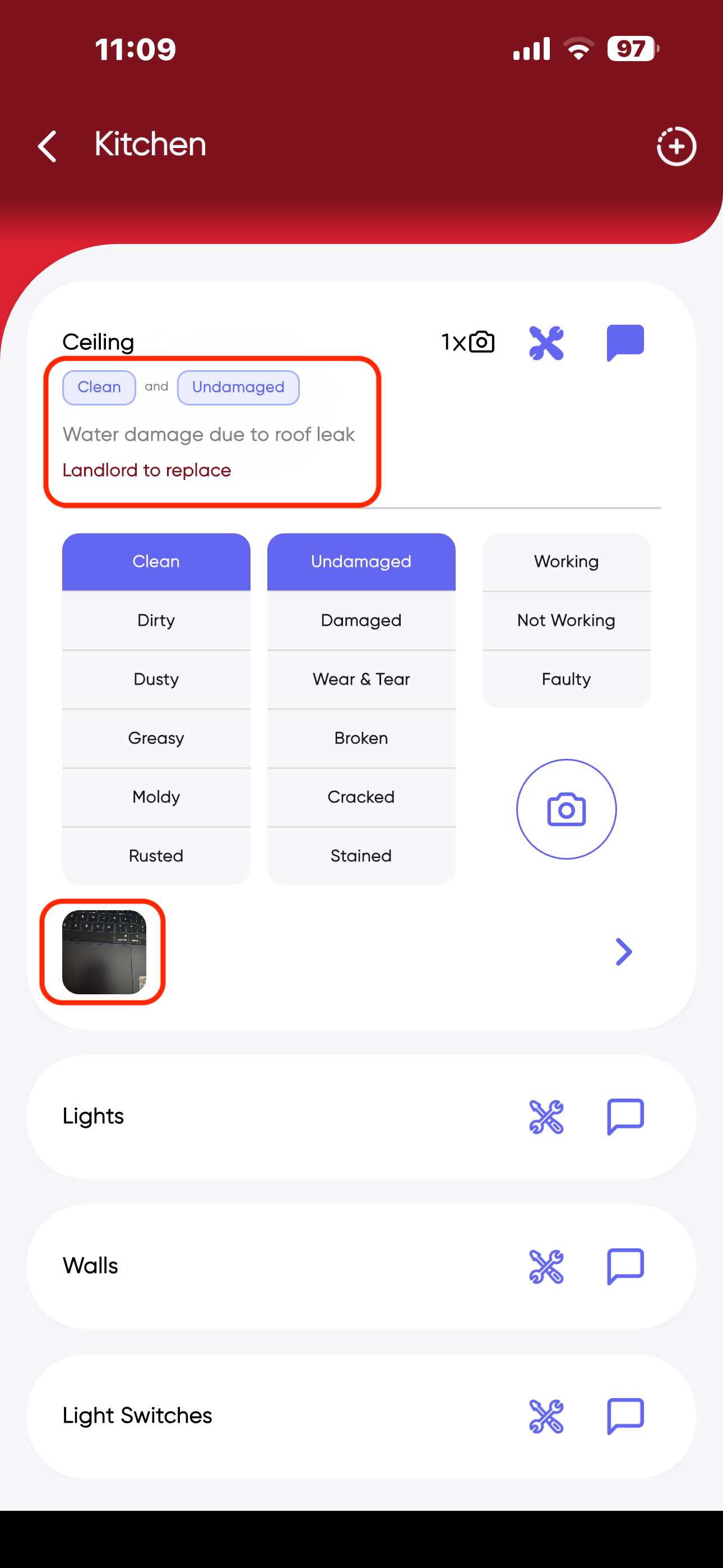
- Once inspected, the condition, recommendations, comments and photos will appear
- Signing of the inspection should be done by all the relevant parties present at the time of the inspection.
- COMPLIANCE is key, meaning every inspection should be signed by the tenant, landlord and the agent/ inspector.
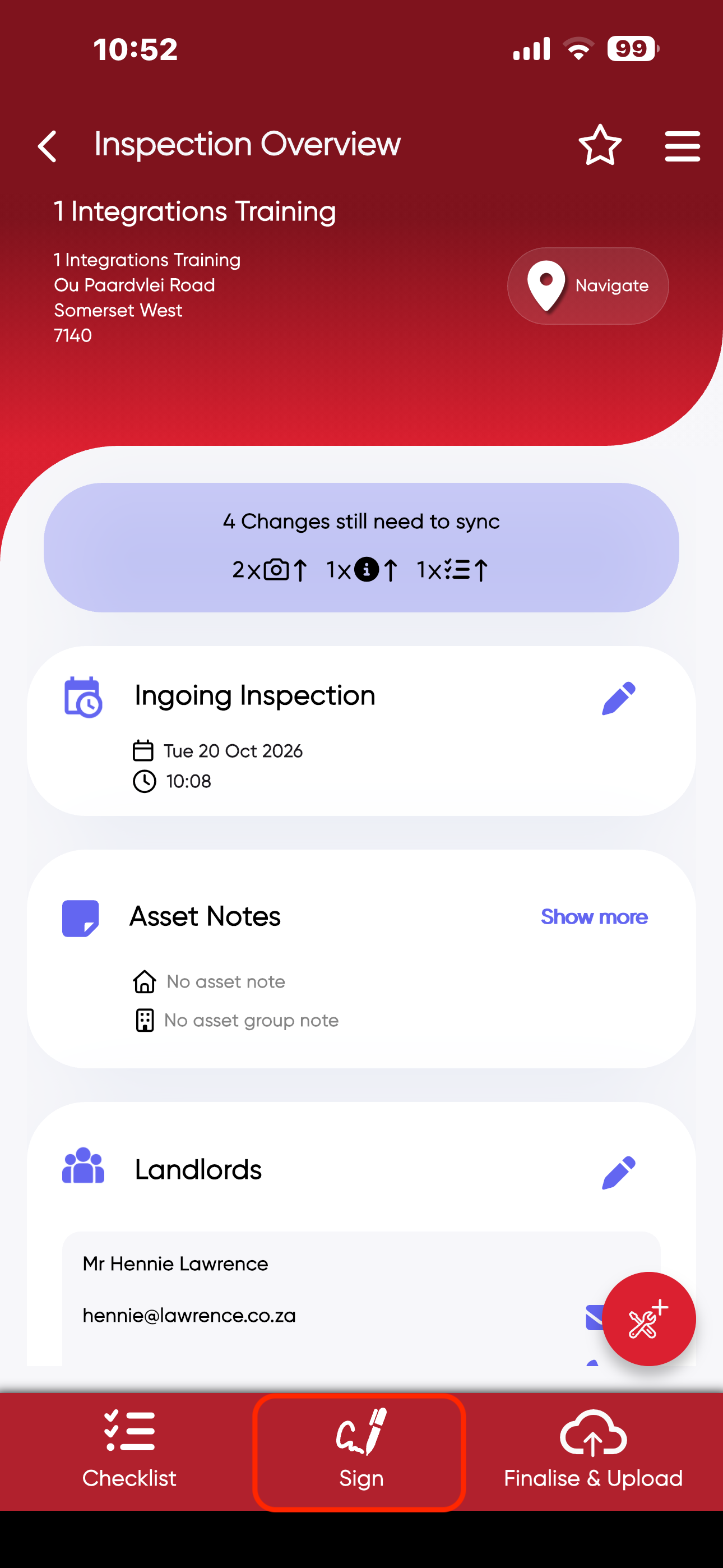
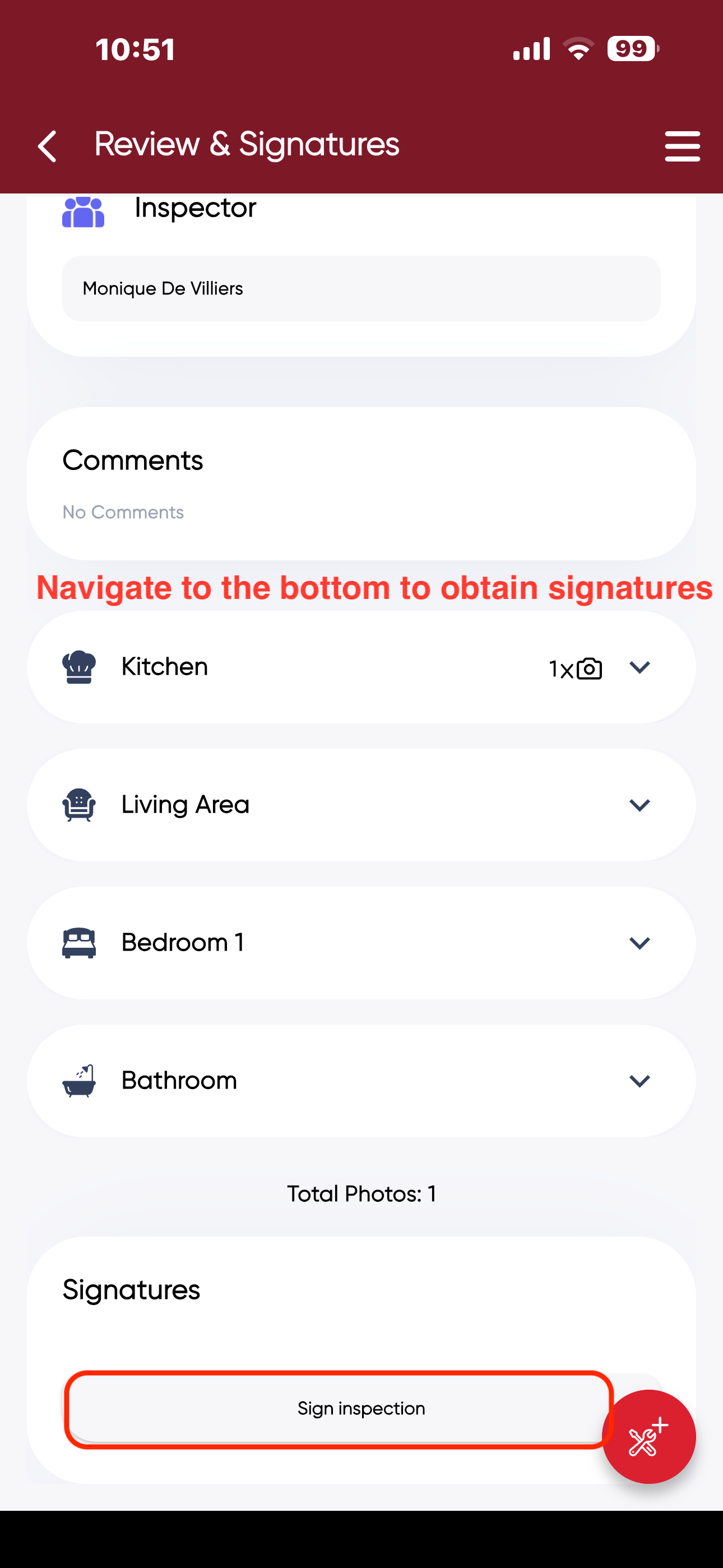
- Navigate to the bottom of the page to get the inspection signed
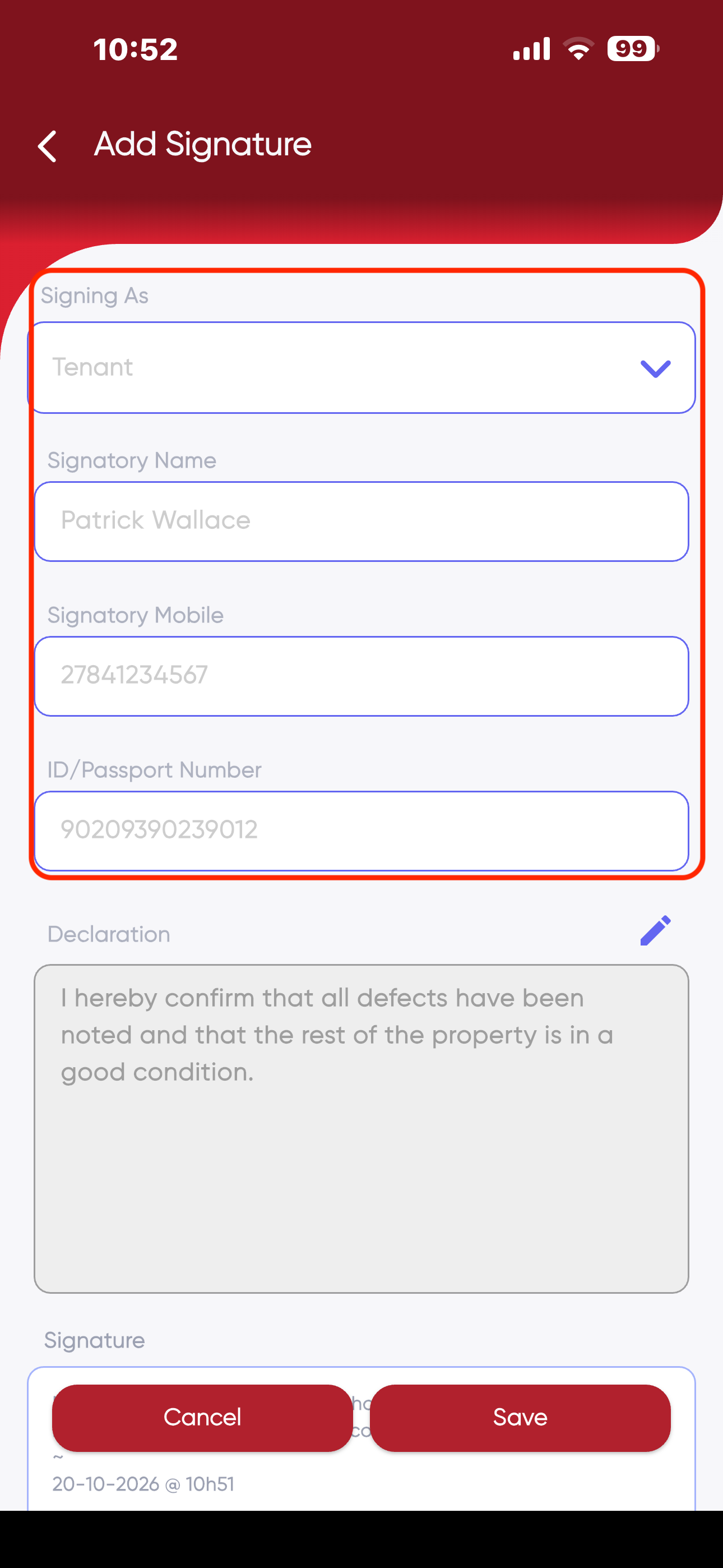
- Enter the relevant details of the person signing the inspection.
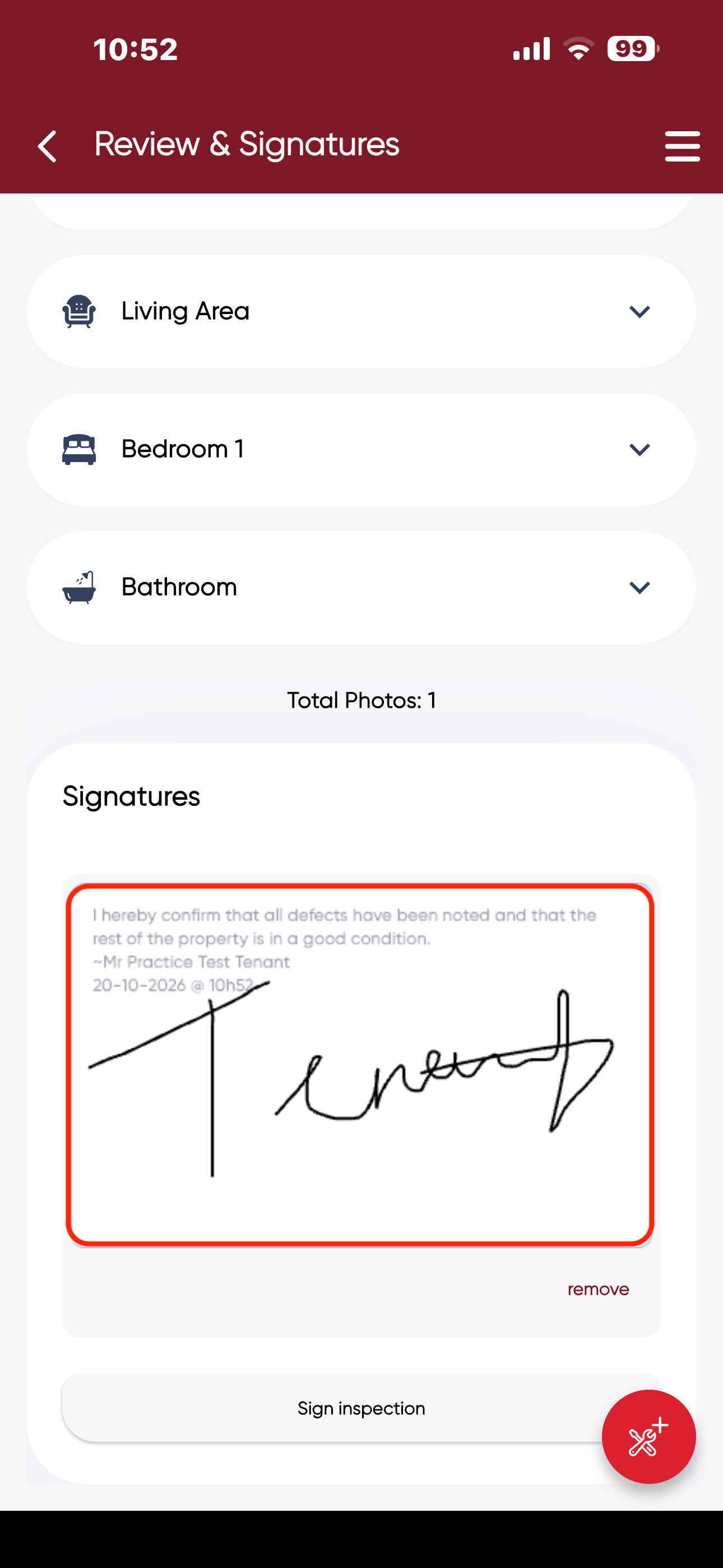
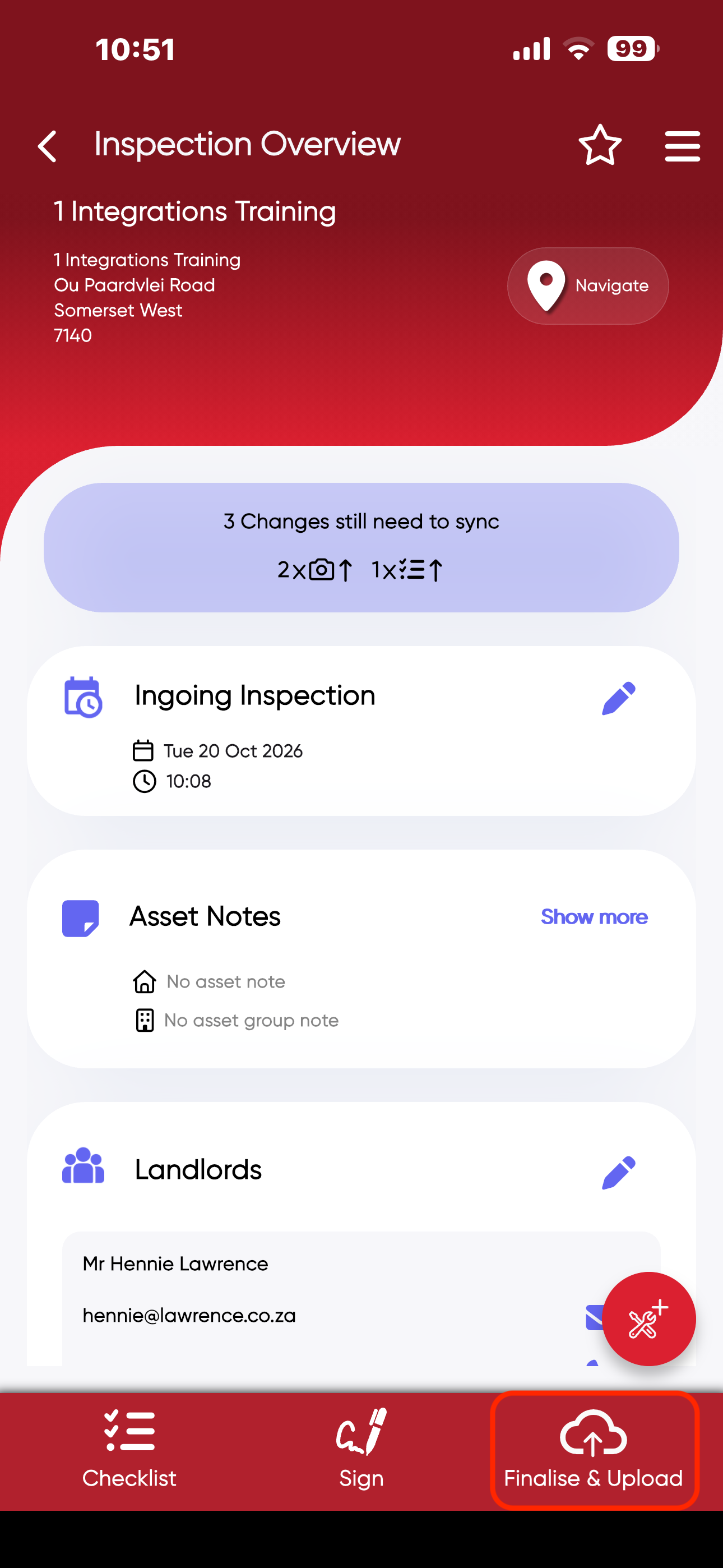
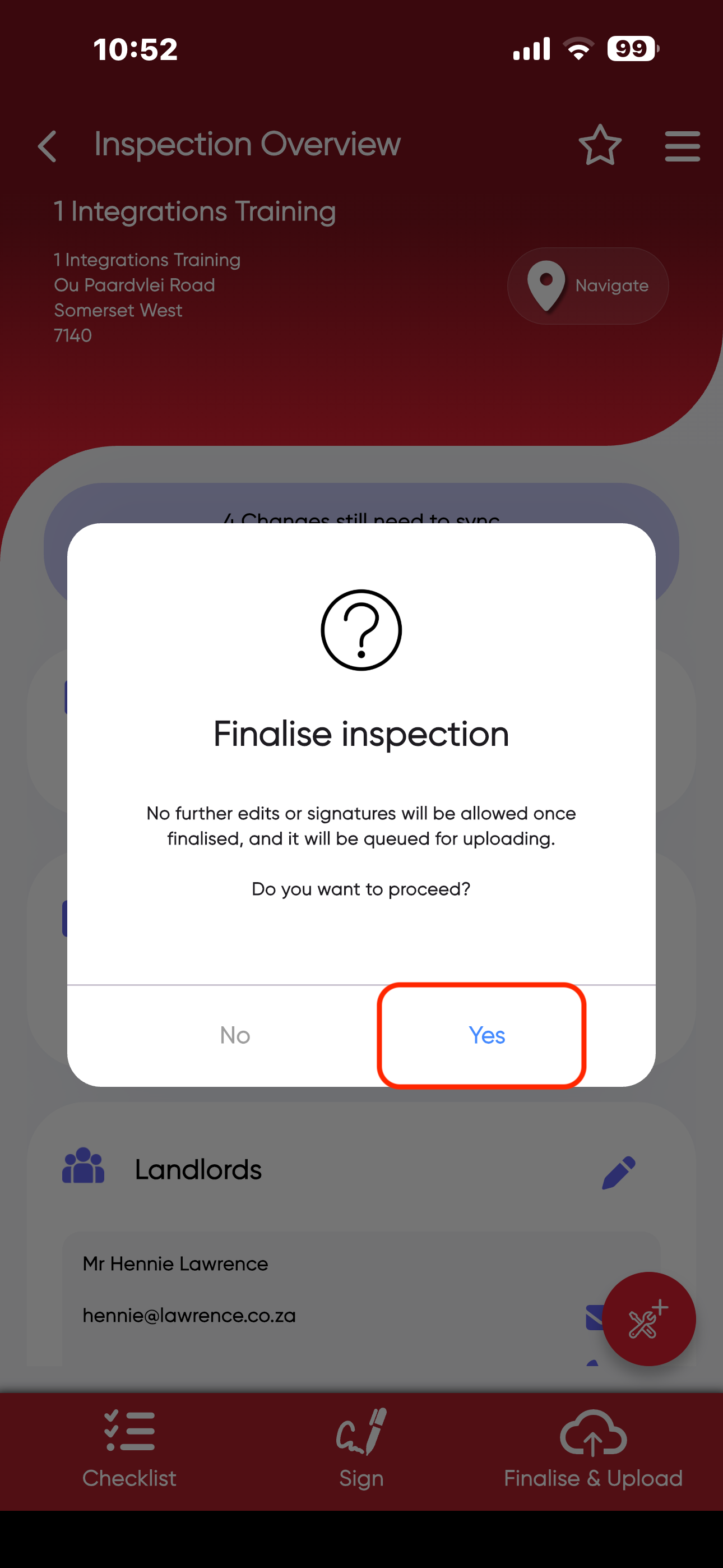
- After the inspection was signed, it needs to be FINALISED AND UPLOADED to the portal.
- This is crucial as it will pull your inspection through to the RedRabbit Portal.
- Always click on "Yes" and your inspection will start syncing to the RedRabbit Portal.
Please note; you are able to upload your inspections in the background so that you can access other apps on your device and continue with your daily tasks.
Just make sure that your homescreen does not lock, as this will stop the upload at the point of the home screen locking. Once your home screen locks, you will need to manually restart the upload. The same applies if you have Battery Saving Mode active on your device. Once the RedRabbit App is seen to be using too much of your battery, your device will automatically close the RedRabbit App and the upload will paused. Our advice is that you turn this Battery Saving Mode feature off to prevent this from happening.
Was this article helpful?
That’s Great!
Thank you for your feedback
Sorry! We couldn't be helpful
Thank you for your feedback
Feedback sent
We appreciate your effort and will try to fix the article