Learn How To Copy From One Inspection Into Another - Mobile App:
In order to speed up the process of having multiple inspections at the same property for the same day or sometime later, you can copy from a previous inspection directly from your mobile app.
Navigation: Log Into Mobile App > Create the Inspection, and or Use a Blank Existing Inspection > Copy Checklist > Click on The Previous Inspection
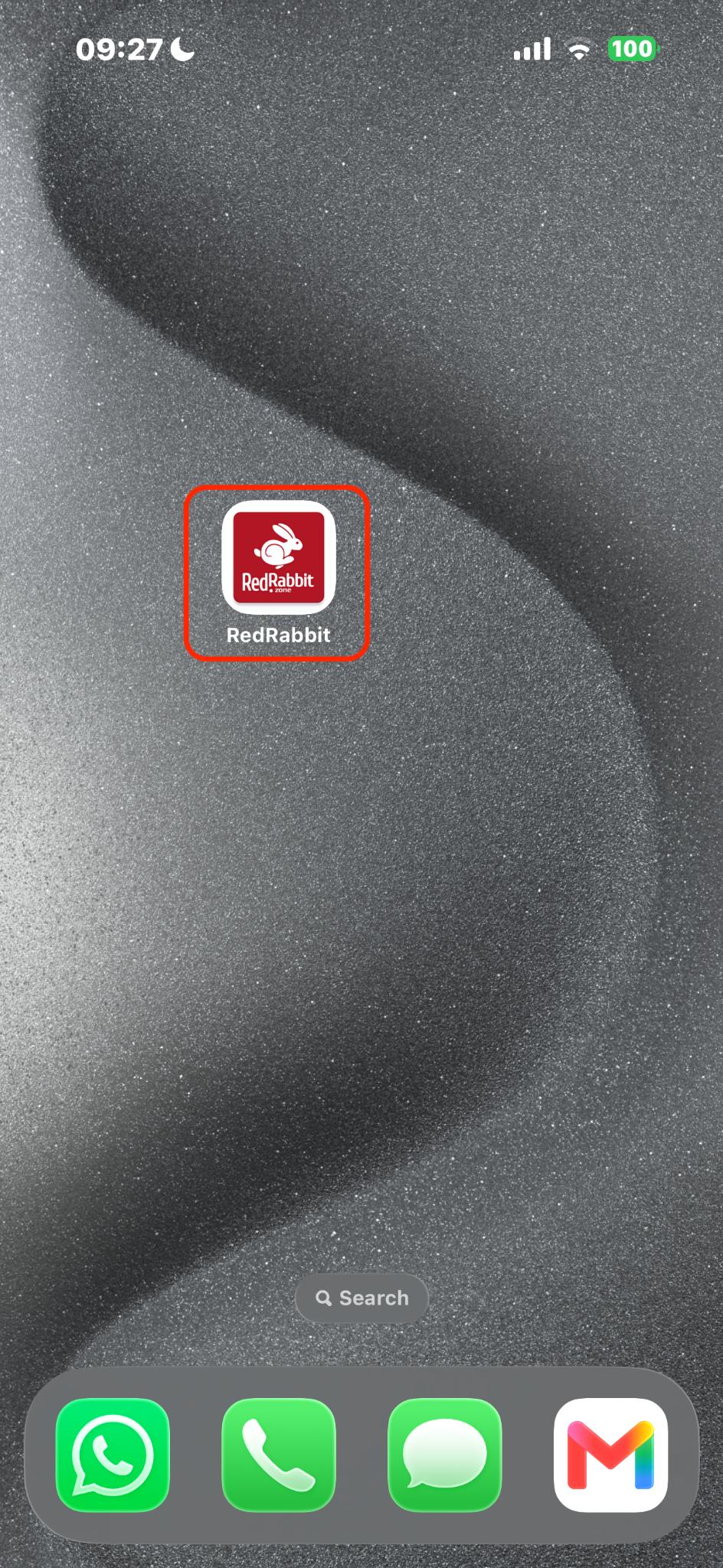
- Log into your Mobile App:
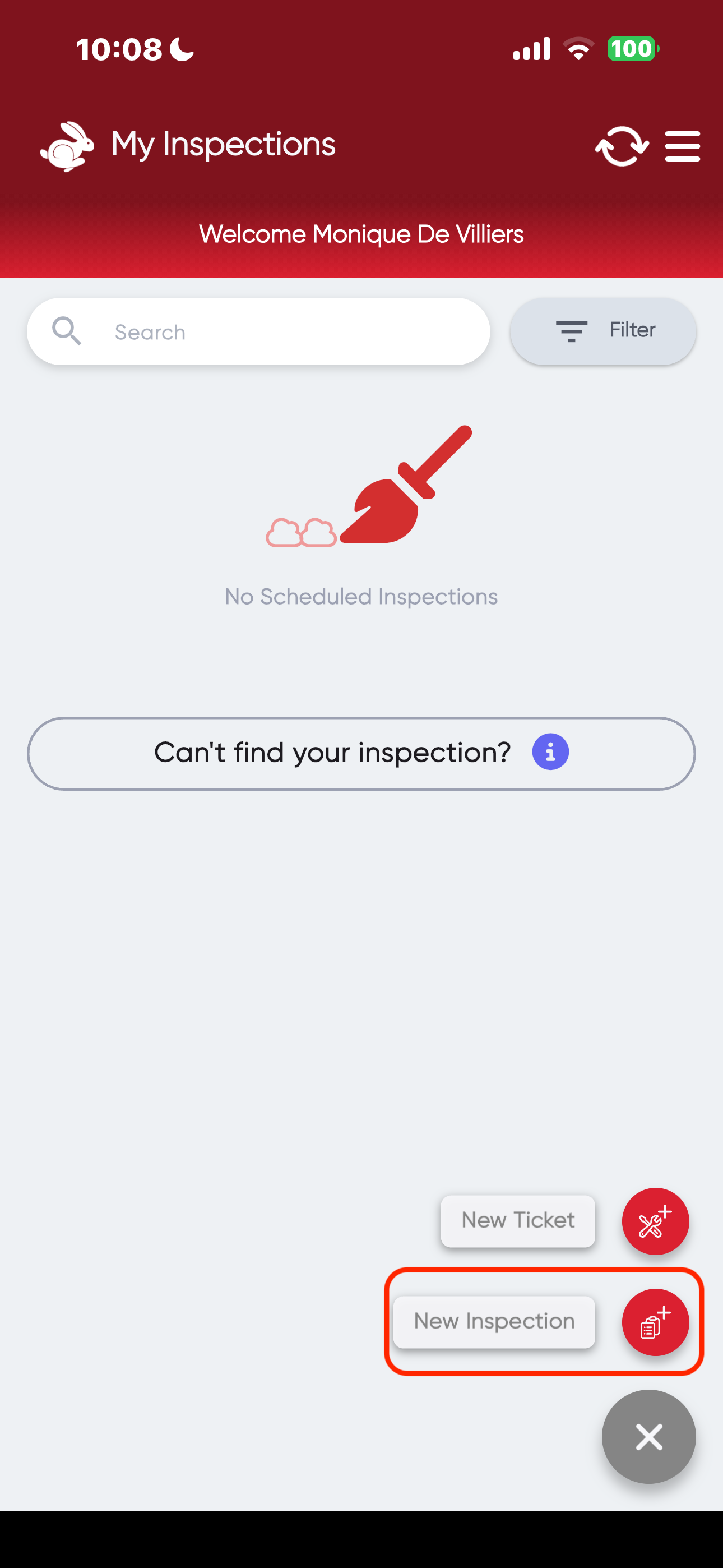
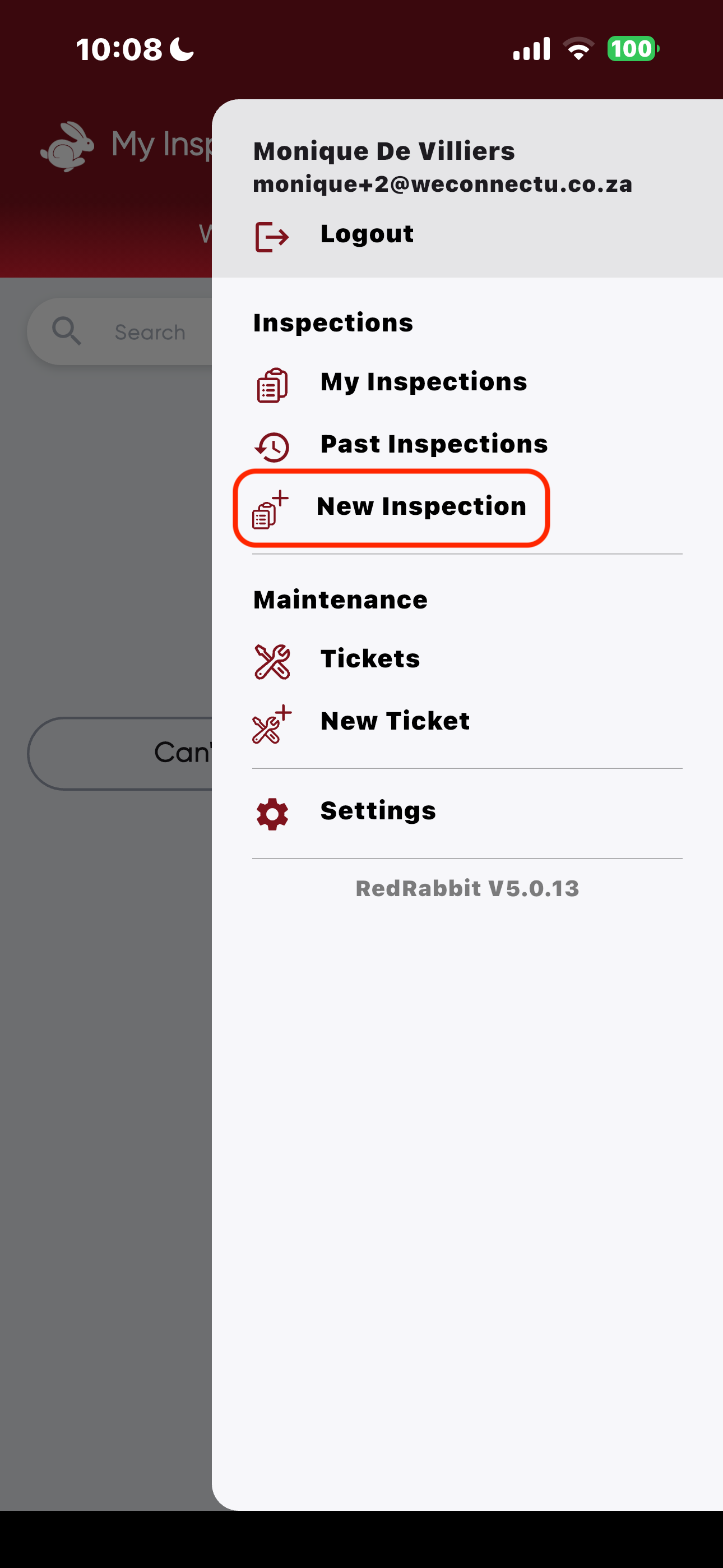
- Click on "+" Icon or navigate to the top right corner and click on "New Inspection":
- Complete the Inspection Details:
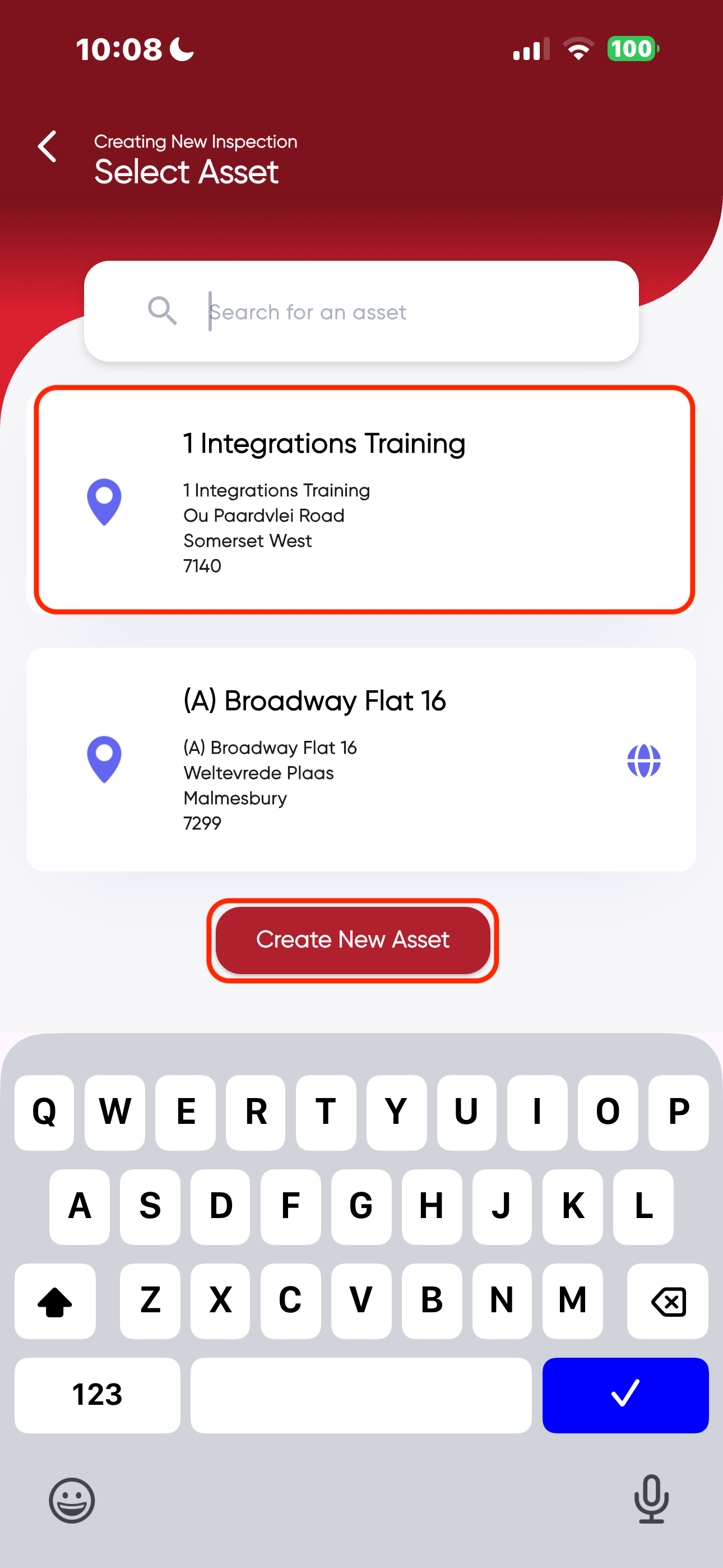
- Select the relevant Asset
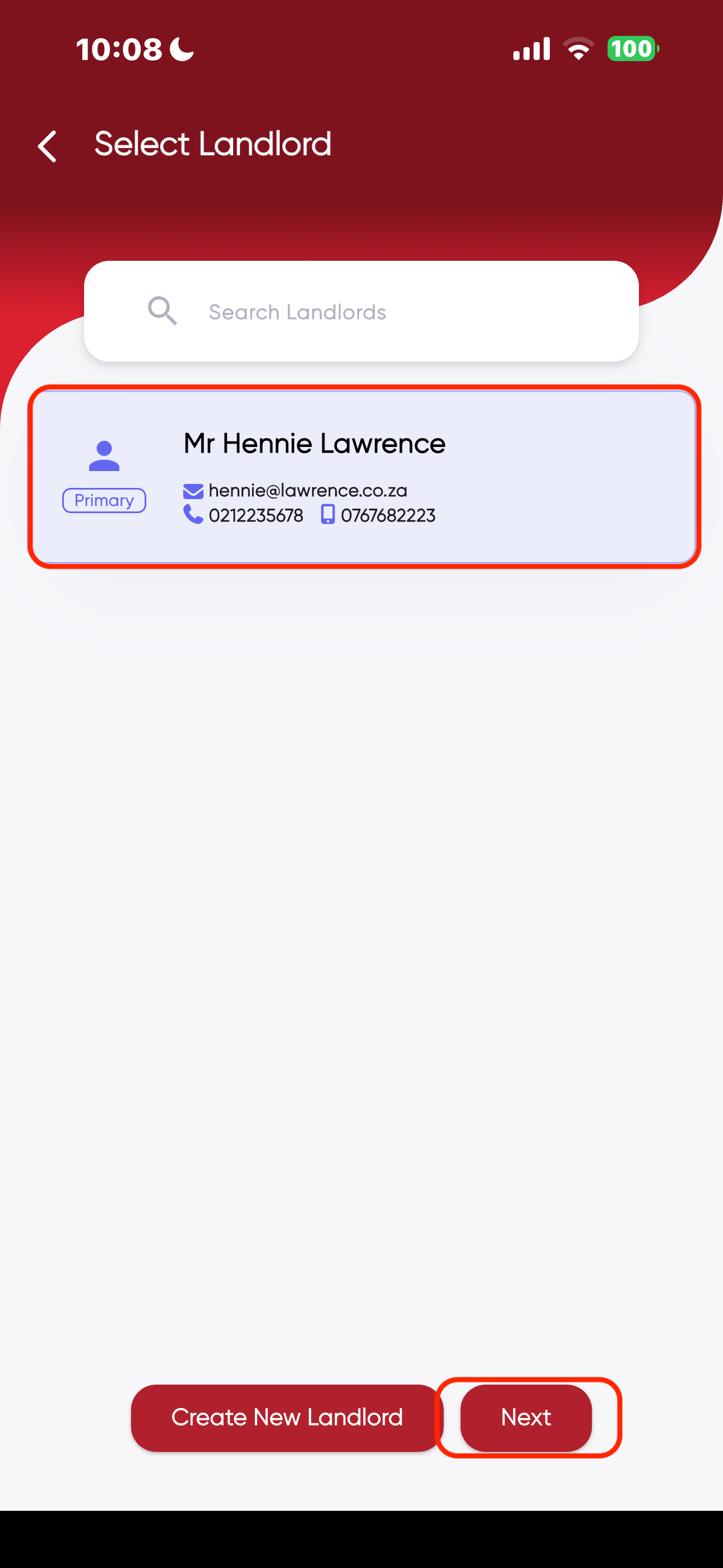
- Select the Landlord:
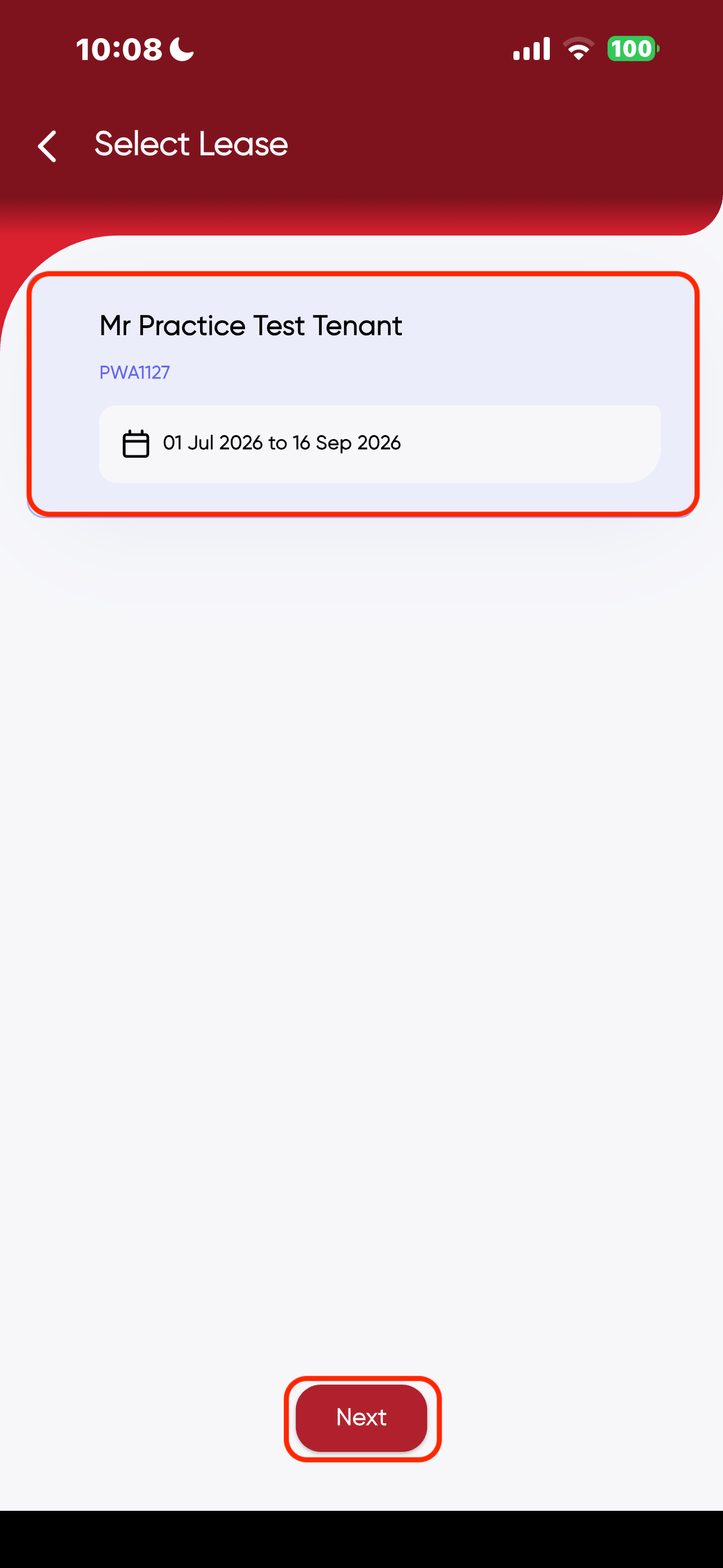
- Select the Lease:
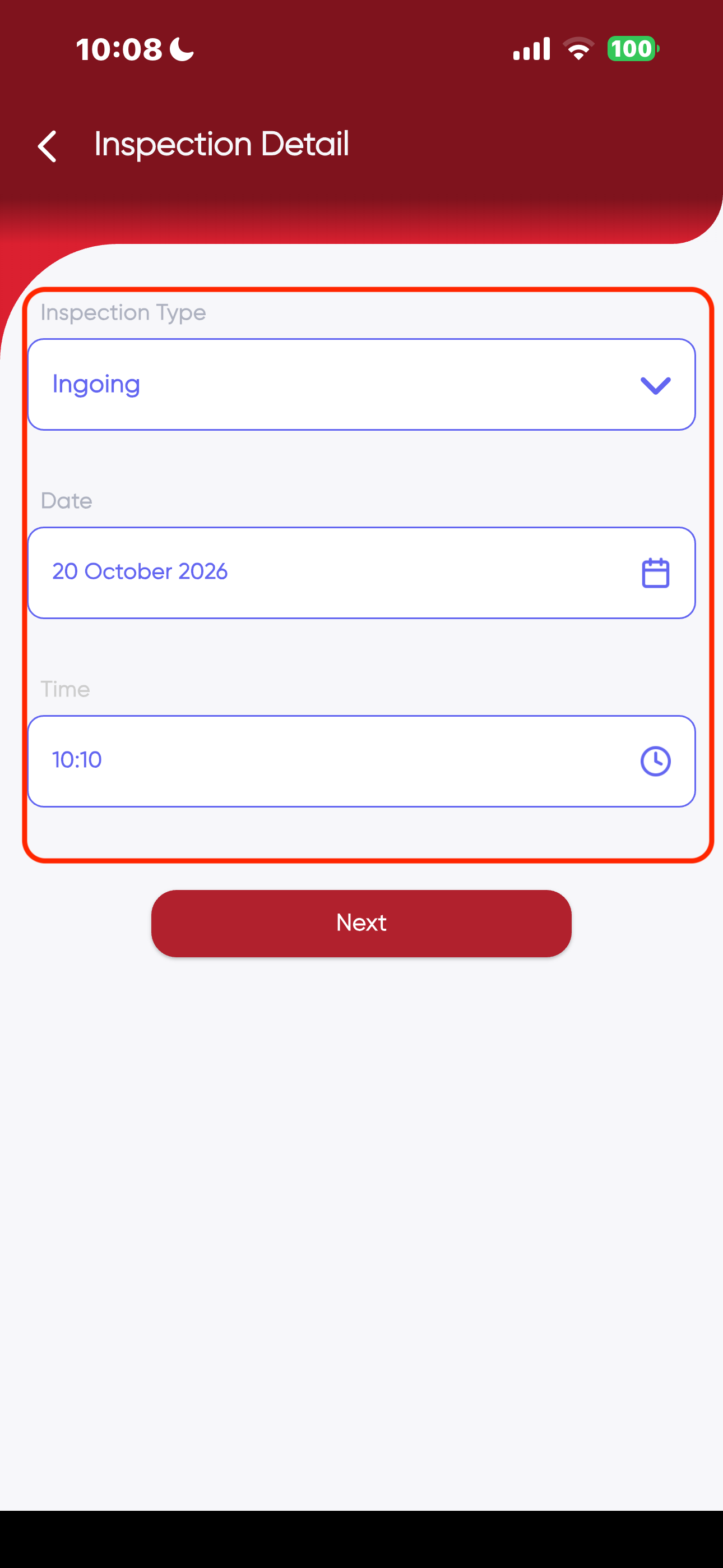
- Complete the Inspection Details:
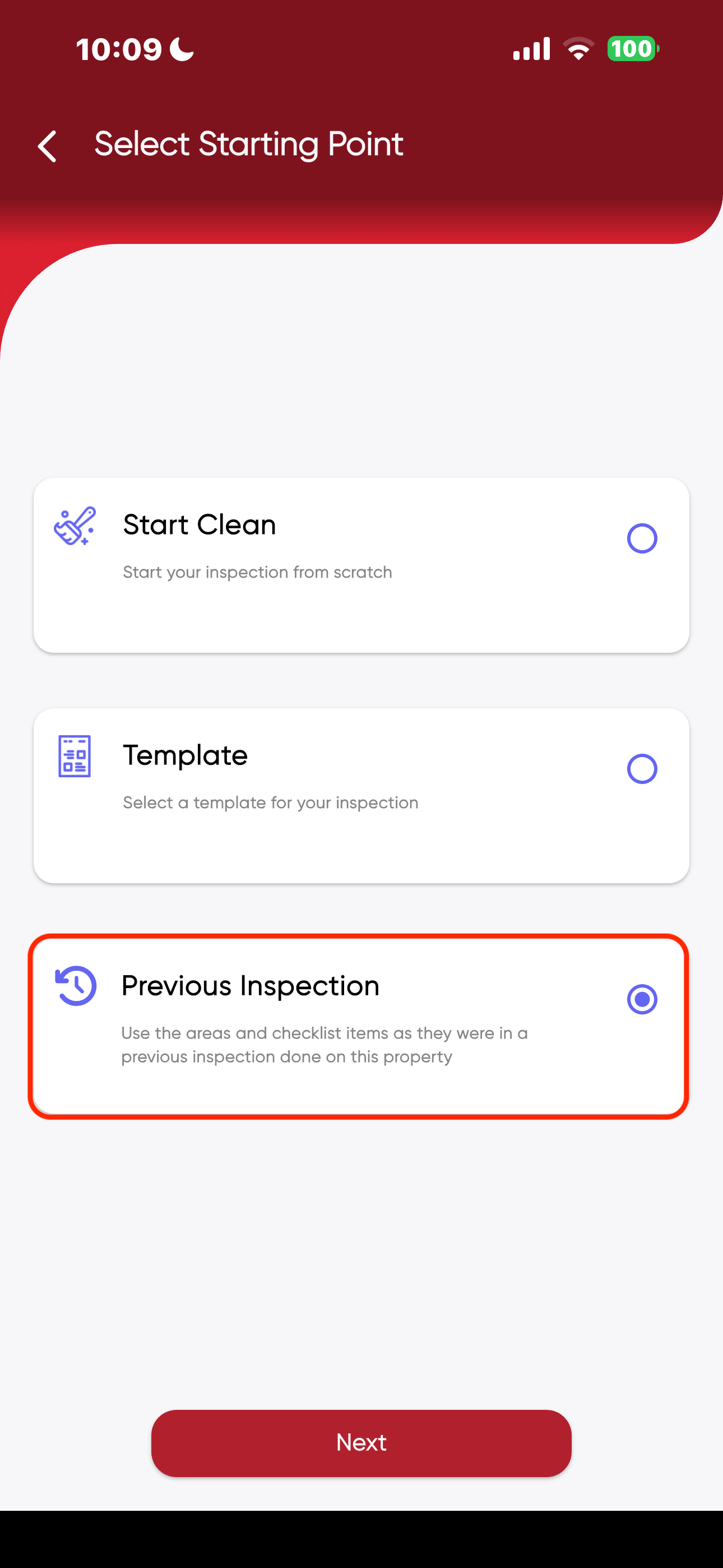
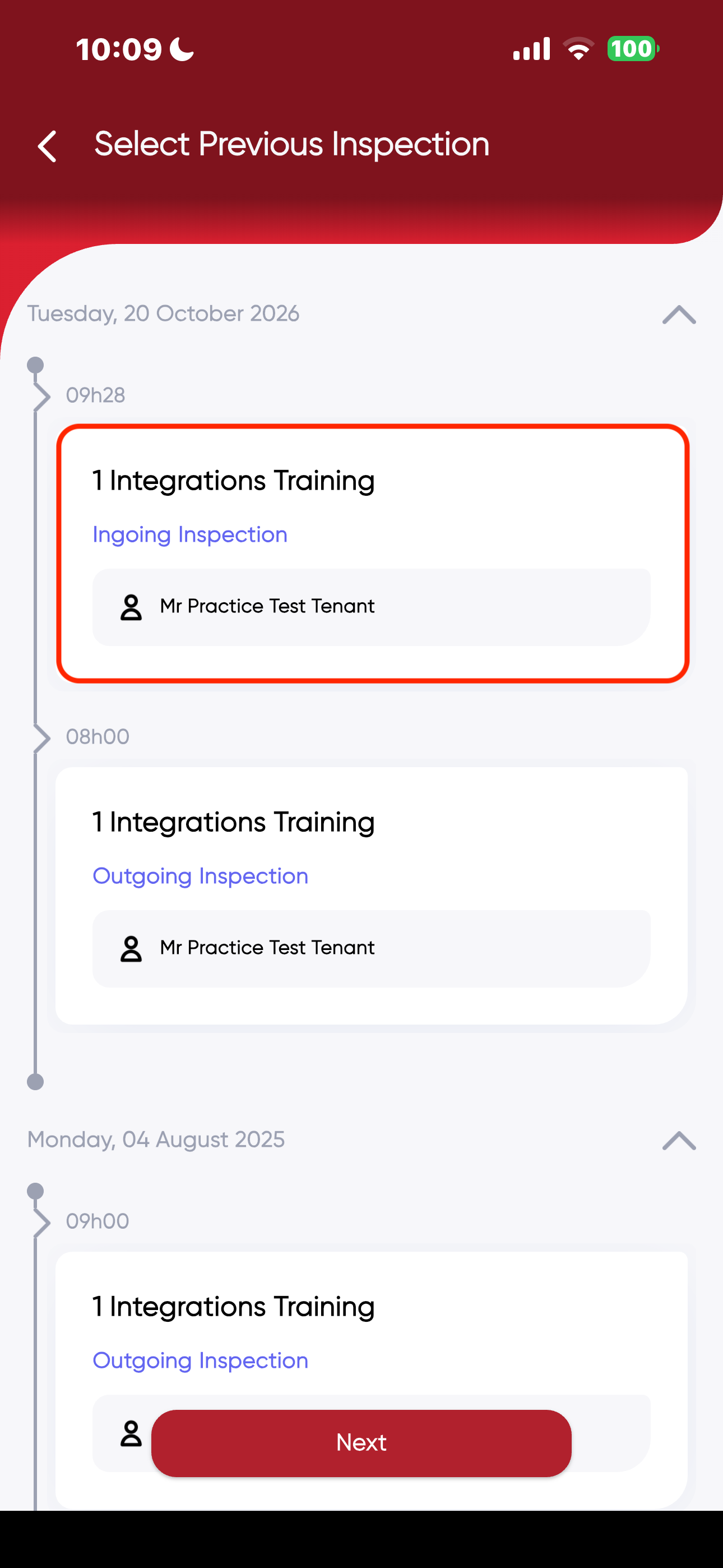
- Select Previous Inspection, a list of inspections on the property will appear:
- Click on the inspection that you would like to copy over into the new Inspection:
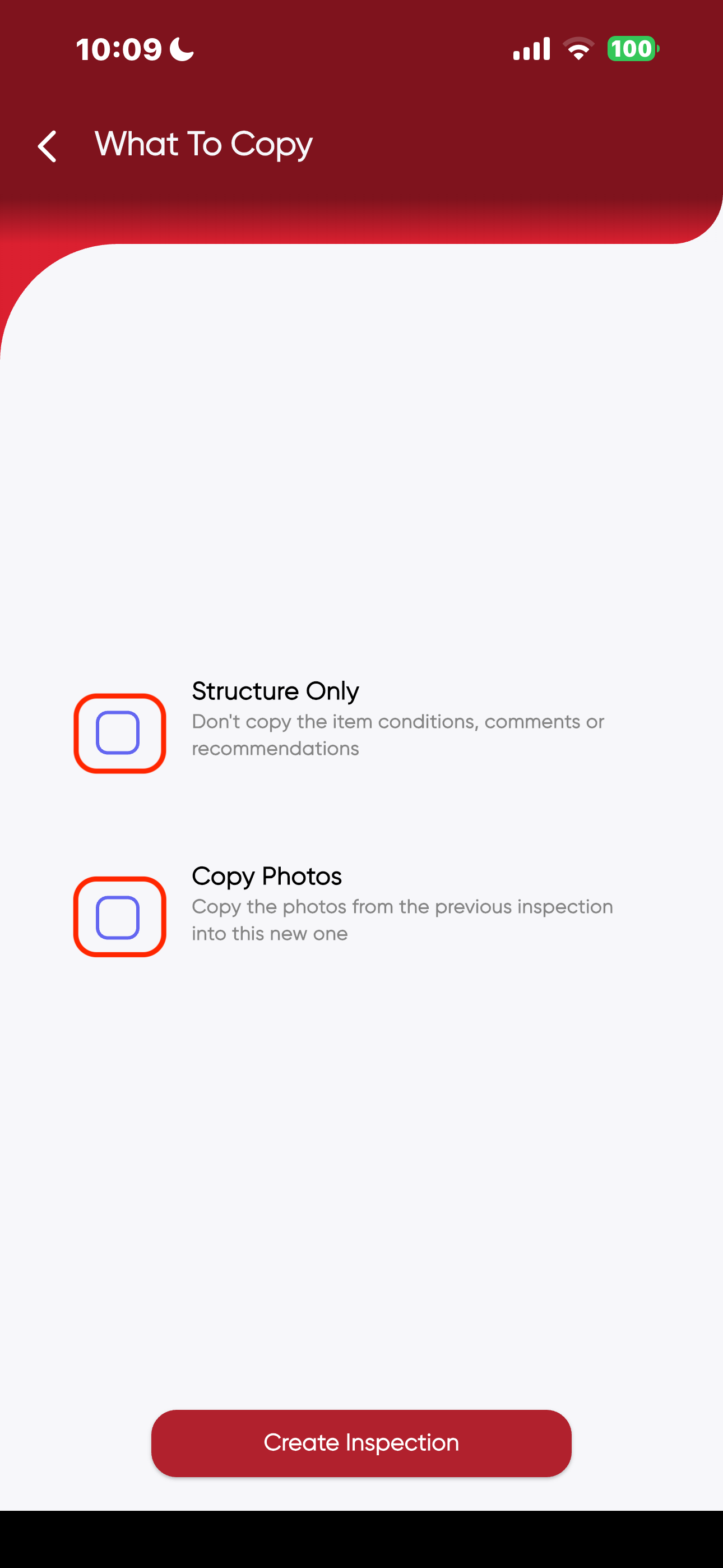
- Select either "Structure Only" or "Copy Photos":
- "Structure Only"- will copy over the inspection template that was used in the previously selected inspection without any photos or details
- "Copy Photos"- will copy over all the photos and comments made during the previous inspection selected to be copied over, however, no recommendations will be copied over from the previous inspection.
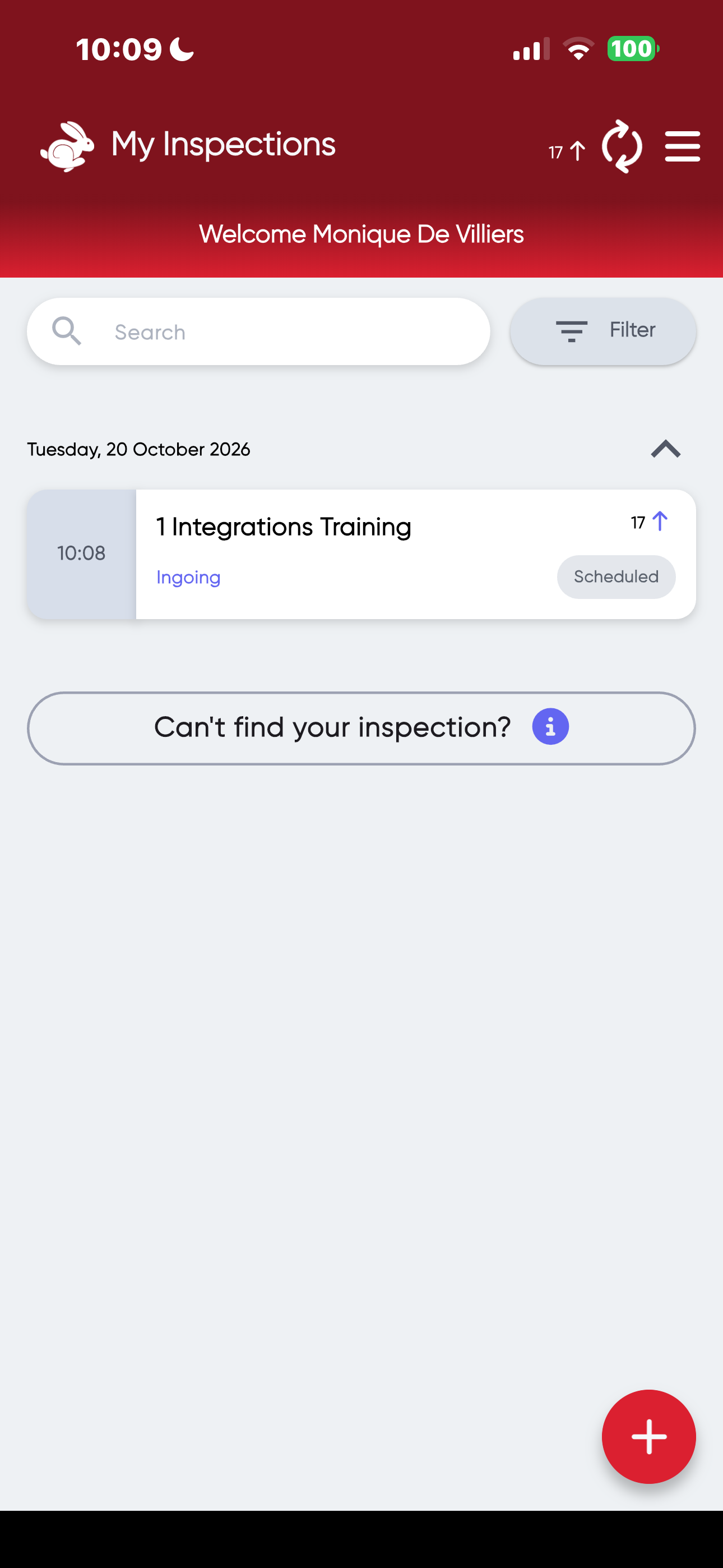
- As per the previous selection, the inspection will be on your dashboard of your RedRabbit app marked as "scheduled".
- Conduct the inspection, obtain signatures and finalise and upload the inspection to the portal.
Was this article helpful?
That’s Great!
Thank you for your feedback
Sorry! We couldn't be helpful
Thank you for your feedback
Feedback sent
We appreciate your effort and will try to fix the article