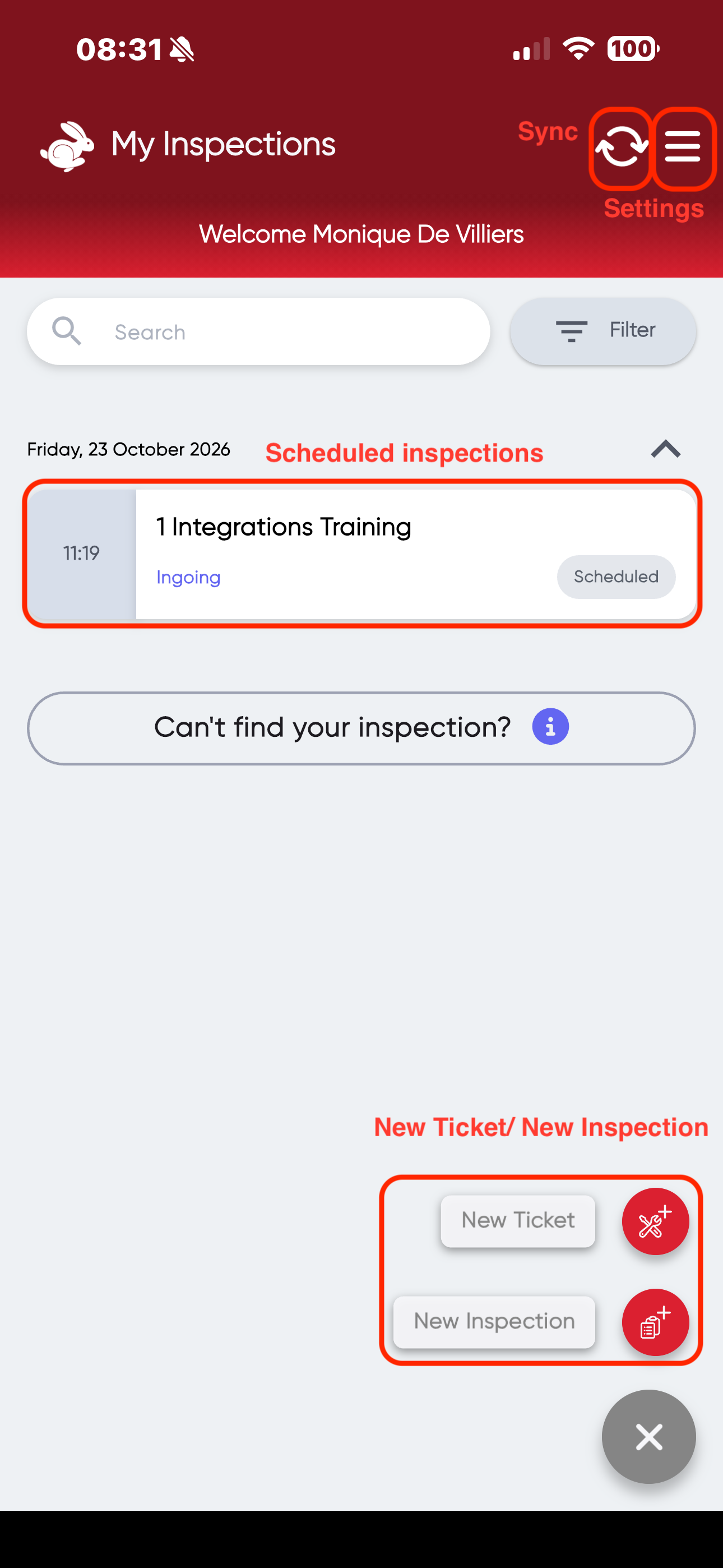
- Home page of the RedRabbit App:
- Sync > Means how many inspections or items still needs to upload to the RedRabbit Portal. If the arrows is still turning it means that its syncing.
- Settings> Where you can change your app settings.
- Your Scheduled/ upcoming inspections will appear on your home dashboard.
- Bottom Right hand corner> You can create New Maintenance Tickets" or create "New Inspections".
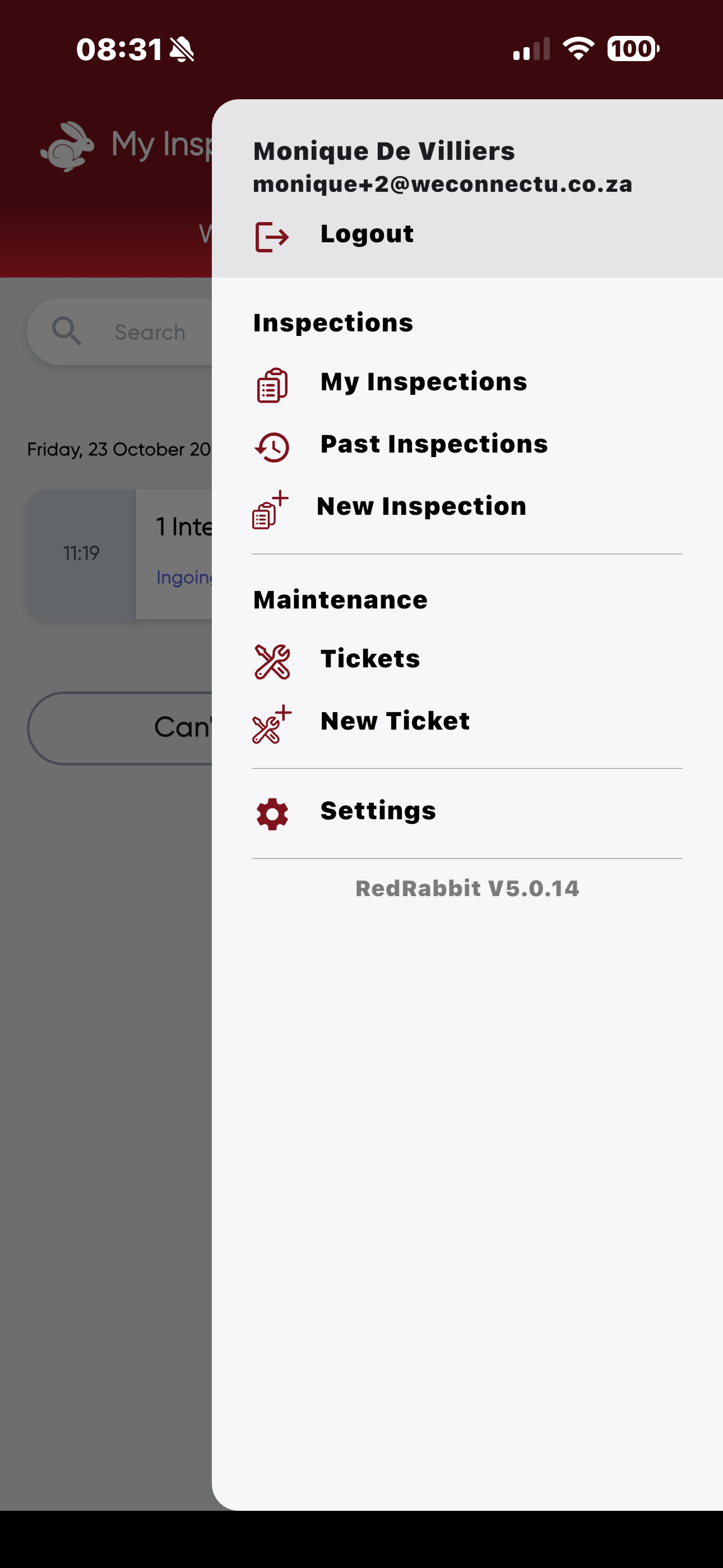
- Click on the Hamburger menu in the top right corner, it will take you several options that you can choose from.
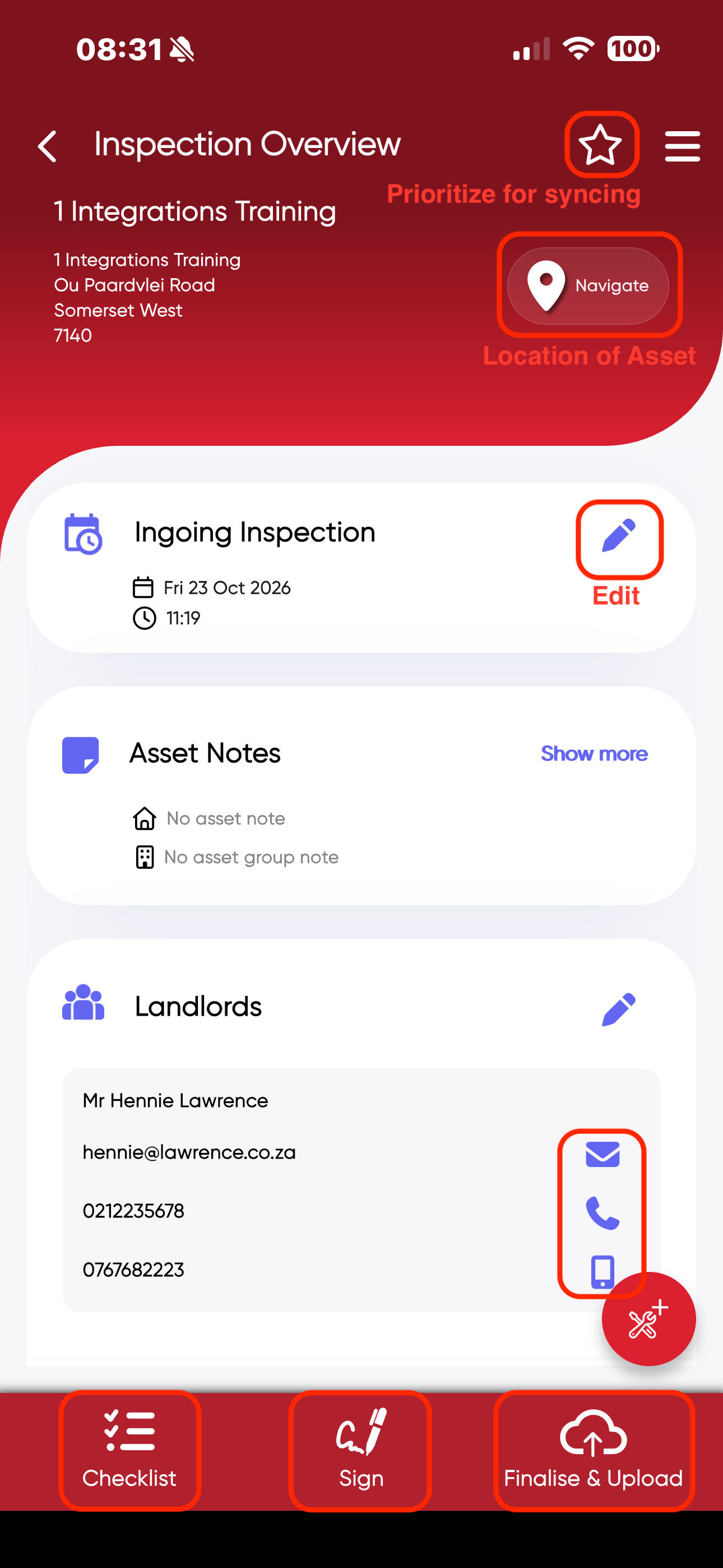
- When opening a Scheduled Inspection, the "Inspection Overview" will appear.
- Star in the right hand corner> Prioritize for syncing; the inspection will pull through to the RedRabbit Portal first.
- Location of Asset> Takes you directly to maps
- You are able to change any details of the inspection by Clicking on the Edit button next to the information that needs to change.
- Next to the contact details there is a email icon and a phone icon> enables you to contact the landlord/ tenant by simply clicking on the icon.
- Checklist> Access the areas for inspection.
- Sign> Obtain signatures of the tenant/ landlord/ inspector after inspection was conducted.
- Finalise & Upload> Uploads to the portal.
Was this article helpful?
That’s Great!
Thank you for your feedback
Sorry! We couldn't be helpful
Thank you for your feedback
Feedback sent
We appreciate your effort and will try to fix the article